
A quick guide to using an authenticator app with your account
Two-factor authentication (2FA) adds an extra layer of security to your account. After entering your password, you'll also need a 6-digit code that refreshes every 30 seconds in your authenticator app.
This guide shows you how to set it up with the most popular apps. The process is the same for all of them
Note: Users do not need to purchase paid authenticator apps. Free options such as Google Authenticator and Microsoft Authenticator provide full compatibility and are sufficient for completing the verification process
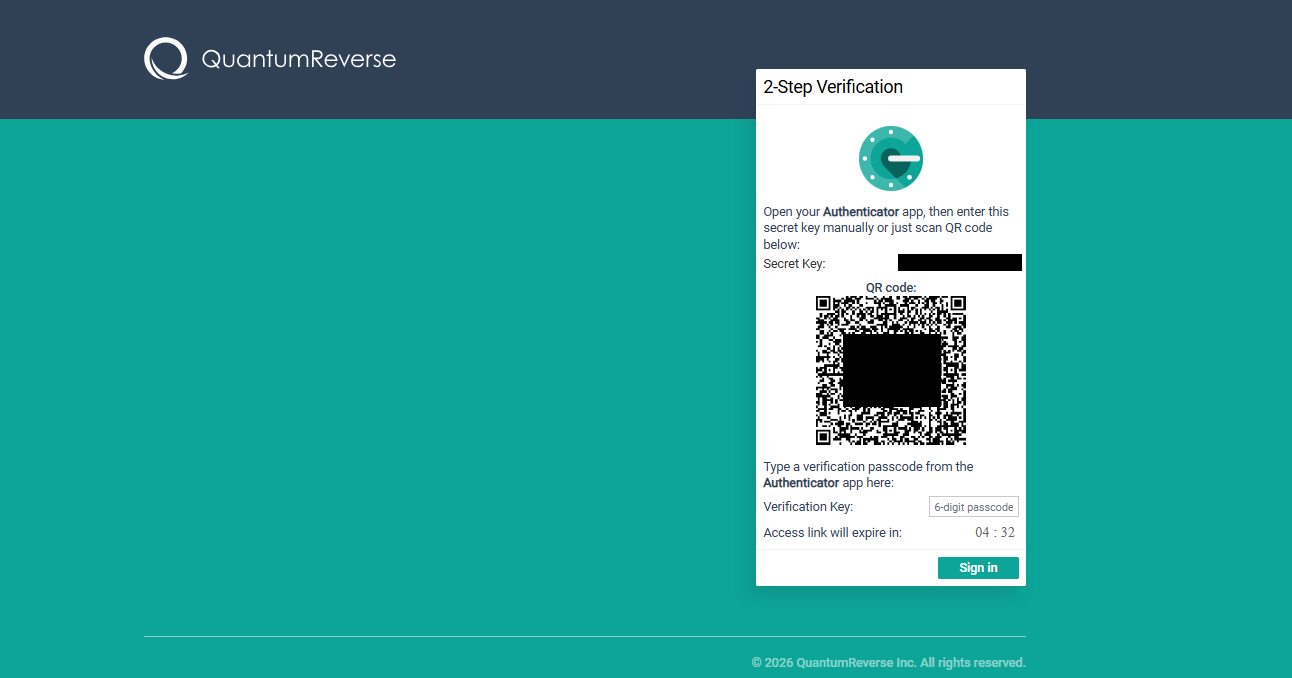
Scan the QR code on the screen, then enter the 6-digit code your app shows you:
Before you start
Keep the setup page open—you'll need to scan the QR code with your phone.
Have your phone ready with one of the apps below installed.
Save your backup codes (if shown) somewhere safe in case you lose your phone.
Google Authenticator
Available on iOS and Android.
Install Google Authenticator from the App Store or from Google Play.
Open the app..
Select "Add Code".
Choose Scan a QR code..
Point your camera at the QR code on the setup page.
The app will add the account and start showing a 6-digit code.
Type that code into verification field on the setup page and confirm.
Tip: : Sign in with your Google account inside the app to back up your codes to the cloud — this makes it much easier to recover if you switch phones.
Video
Microsoft Authenticator
Available on iOS and Android.
Install Microsoft Authenticator from the App Store, or from Google Play.
Open the app and tap the + icon in the top-right corner.
Select Other account (Google, Facebook, etc.).
Tap Scan QR code and point your camera at the QR code on the setup page.
The account appears in your list with a rotating 6-digit code.
Enter the code on the setup page and confirm.
Tip: Enable cloud backup in the app's settings so your accounts transfer automatically when you change phones.
Apple Passwords
Available on iPhone, iPad, and Mac running iOS 18 / macOS Sequoia or later. Apple's built-in Passwords app can generate TOTP codes and autofill them when you sign in.
On iPhone or iPad
Open the Passwords app.
Tap All or find the existing entry for our site (or create a new one).
Tap Set Up Verification Code…
Choose Scan QR Code and point your camera at the QR code on the setup page.
If you're viewing the setup page on the same device, choose Enter Setup Key instead and paste the key shown beneath the QR code.
A 6-digit verification code now appears in the entry.
Copy it and enter it on the setup page to confirm.
Troubleshooting
The code doesn't work.
Codes are time-based, so your phone's clock needs to be accurate. Check that Set Time Automatically is enabled in your phone's date & time settings. In Google Authenticator, you can also go to Settings → Time correction for codes → Sync now.
I entered the code too late.
Each code only lasts 30 seconds. Wait for a new one to generate, then enter it quickly.
I lost my phone.
Use one of the backup codes you saved during setup, or contact our support team to verify your identity and reset 2FA.