
Learn how to use the powerful synchronization features to link your document review directly with loan data entry and leverage AI for deep content analysis.
Activating Document Sync
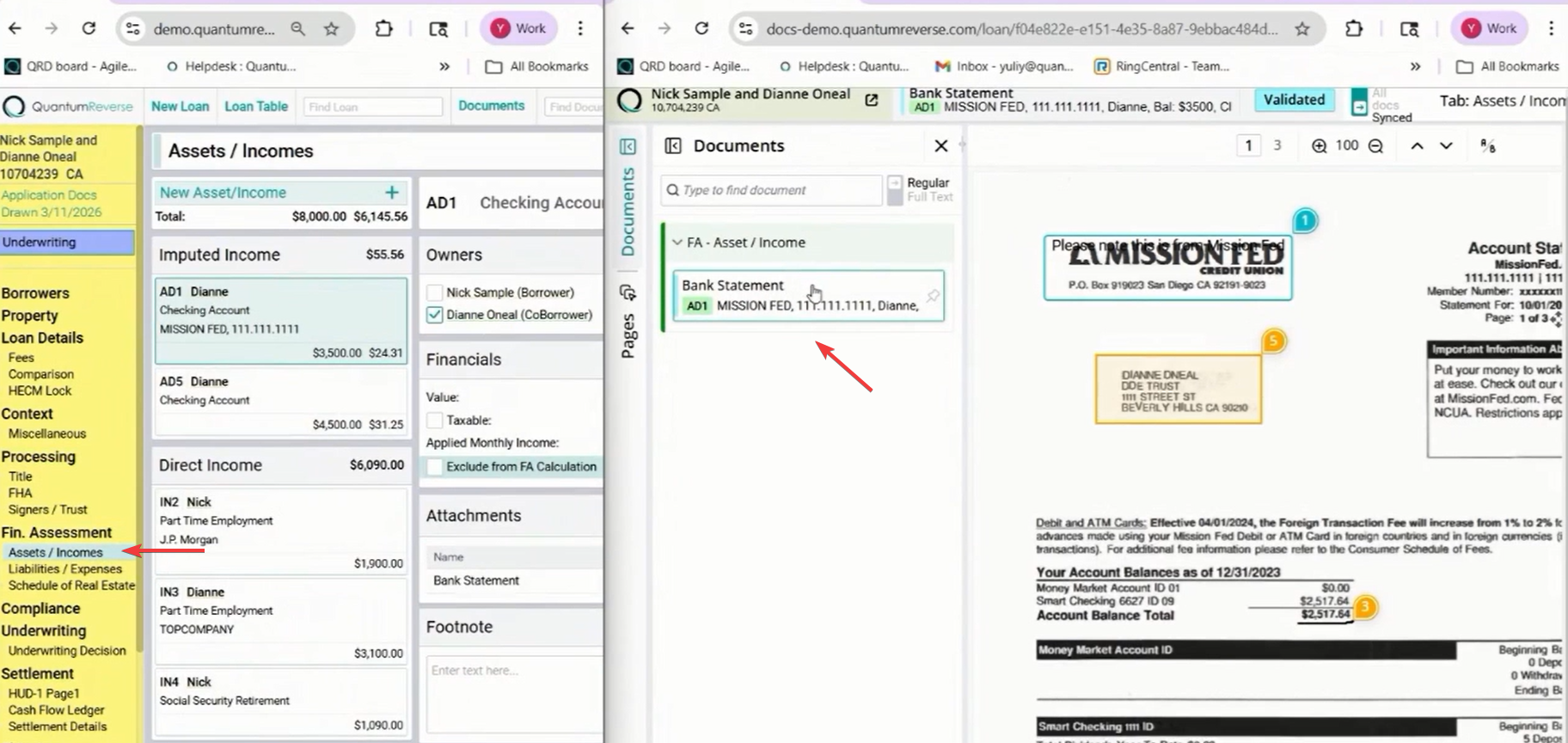
The synchronization feature allows the document viewer to automatically follow your navigation within the loan software. To enable this, split your screen and click the Synced button at the top of the document viewer.
Once activated, the viewer will dynamically load the relevant documents as you click through different screens and sections of the loan file.
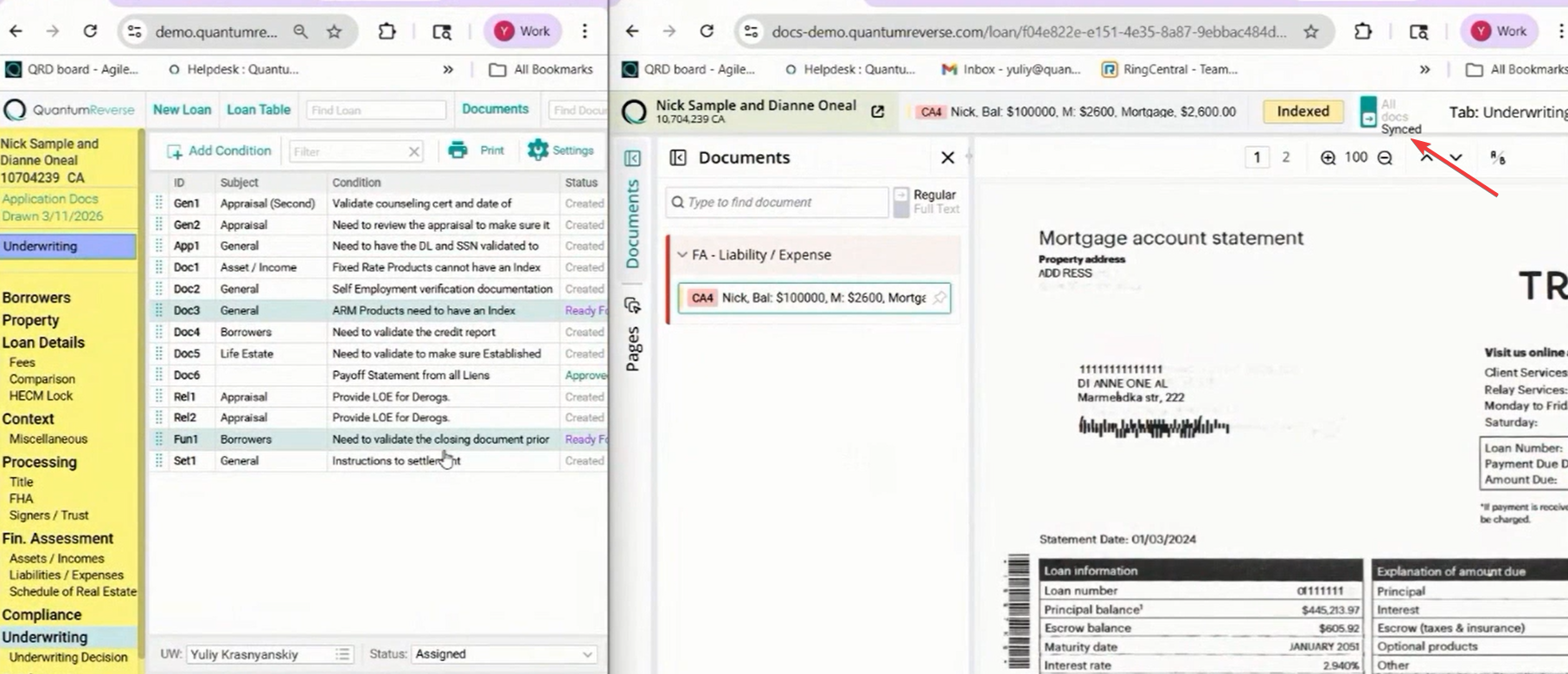
Context-Aware Navigation
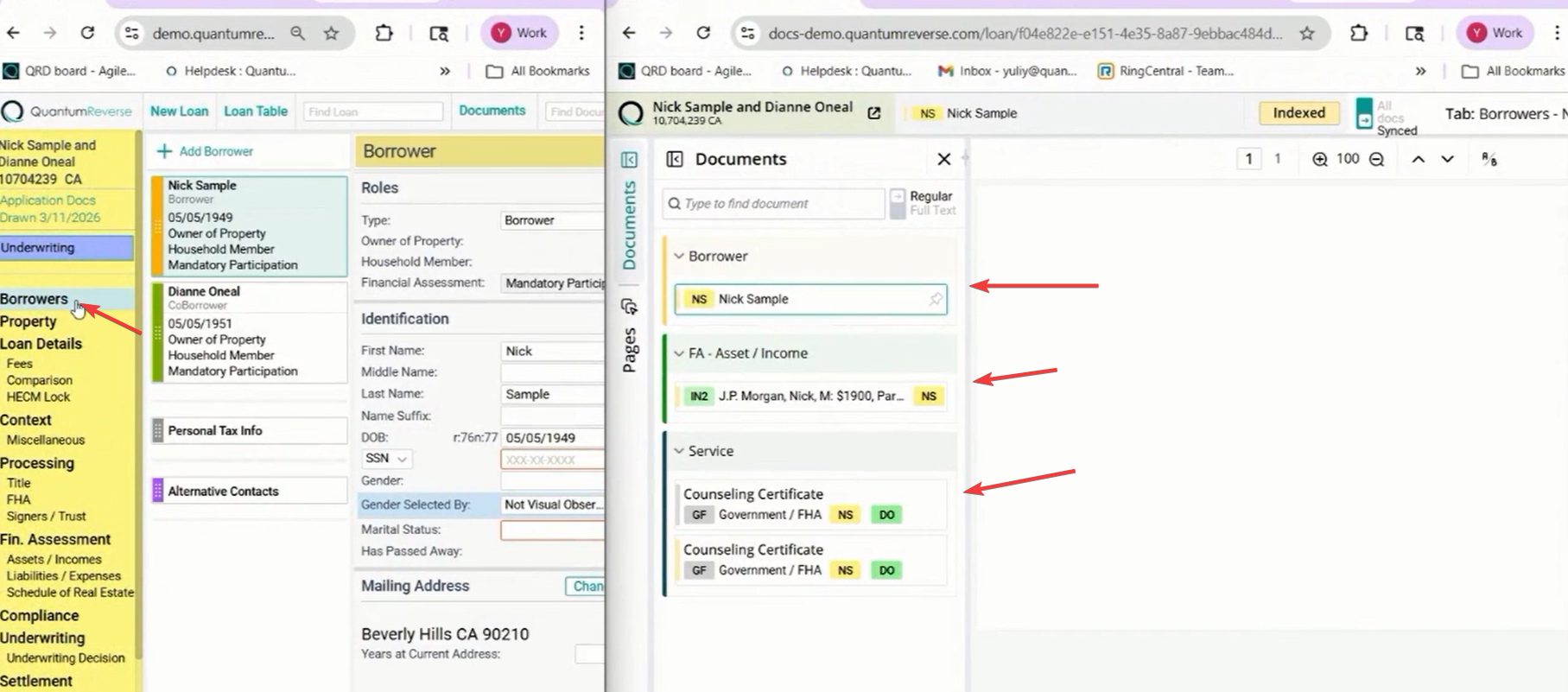
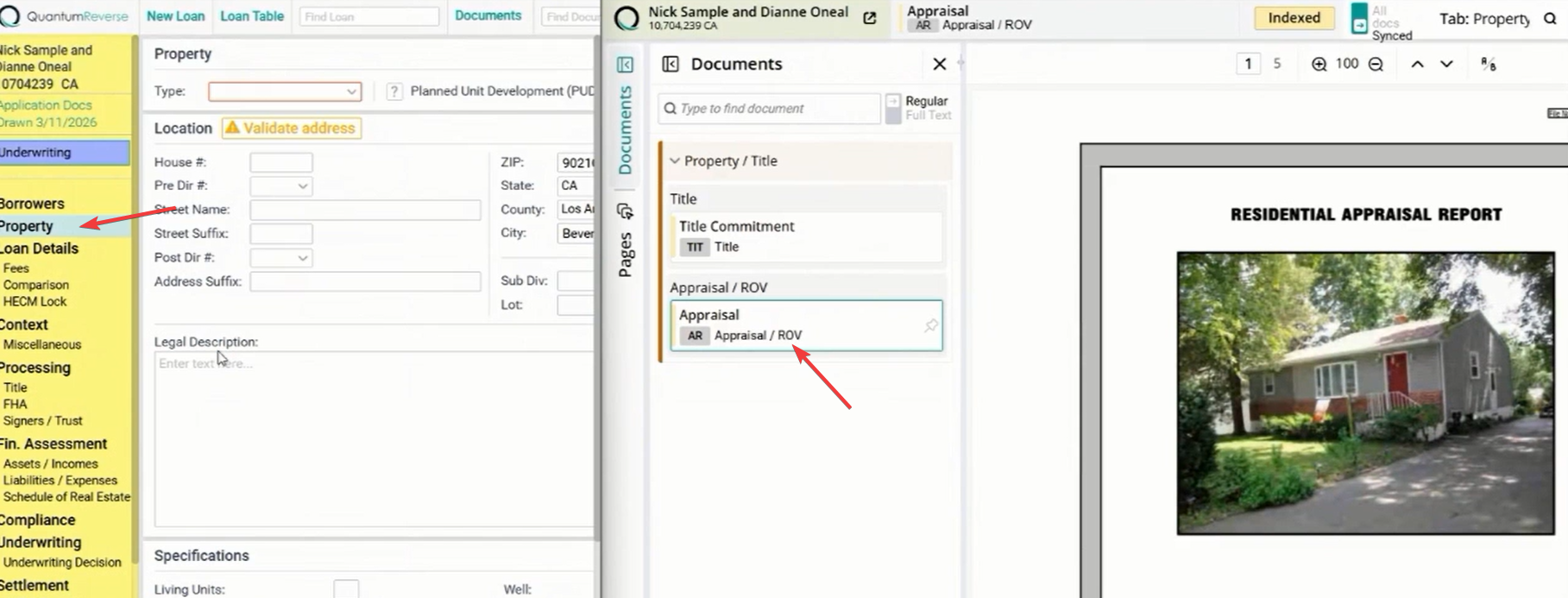
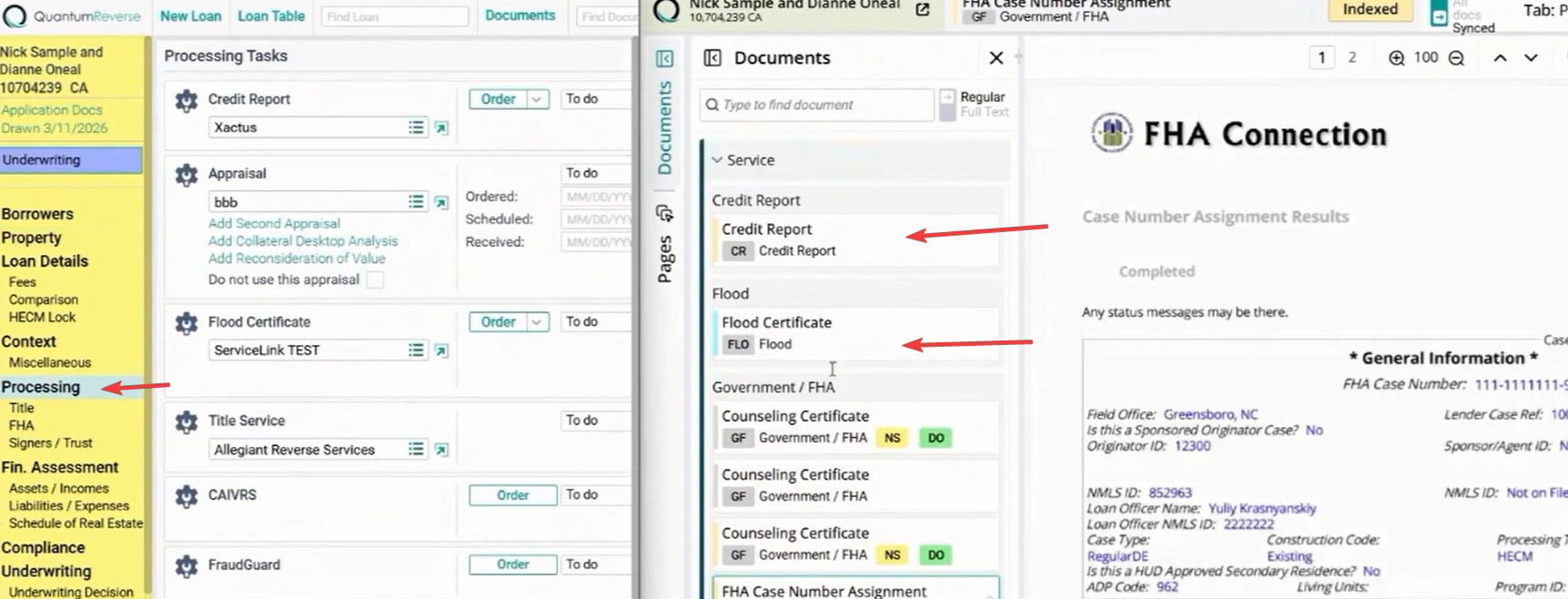
With Sync enabled, the system understands the context of your work. As you navigate through the loan tree, the viewer automatically updates.
Borrowers: Selecting the borrower screen loads identity documents like Social Security cards or driver licenses.Property: Clicking the property section automatically pulls up the title commitment or appraisal report.
Processing: Navigating to processing tasks loads relevant files like credit reports or flood certificates.
Syncing Assets & Income
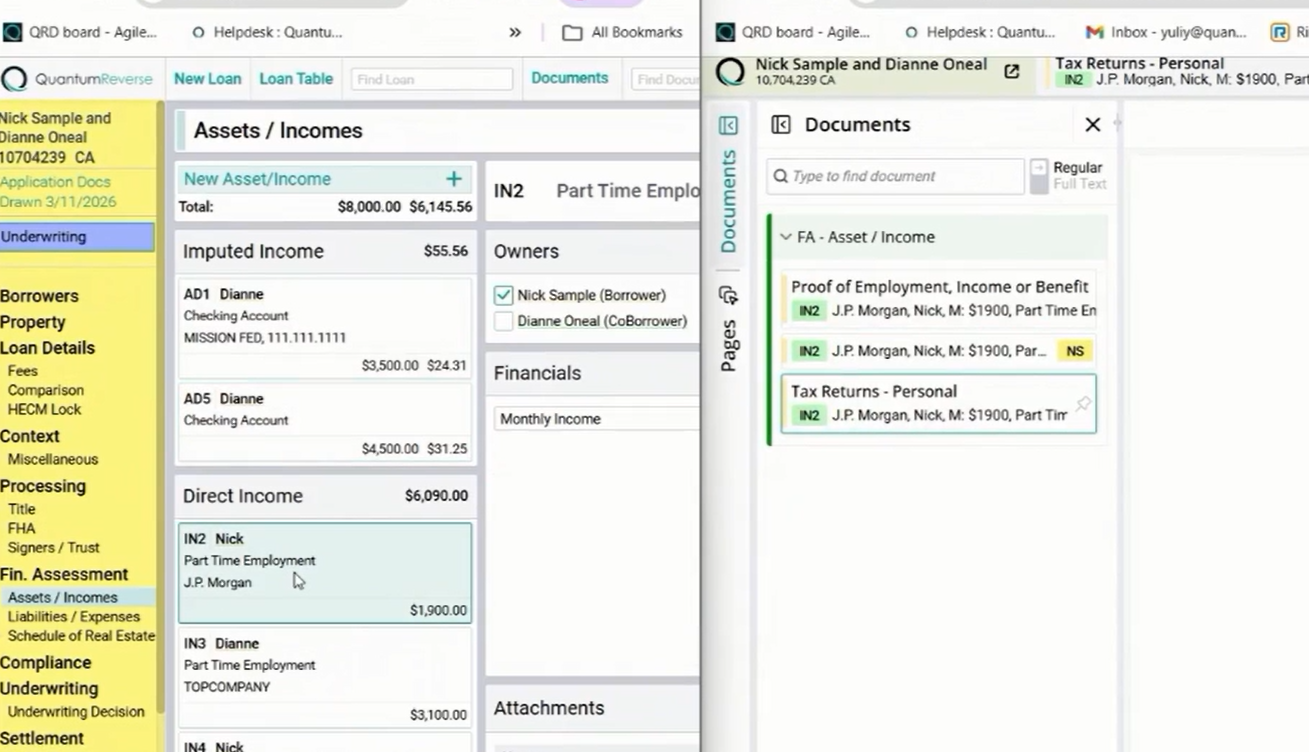
The Sync feature is particularly powerful when working with financial data. When you navigate to the Assets/Income section of a loan, the viewer will automatically display the corresponding bank statements or pay stubs.
This eliminates the need to manually search for the correct file while you are performing income calculations or asset verification.
AI Content Summary
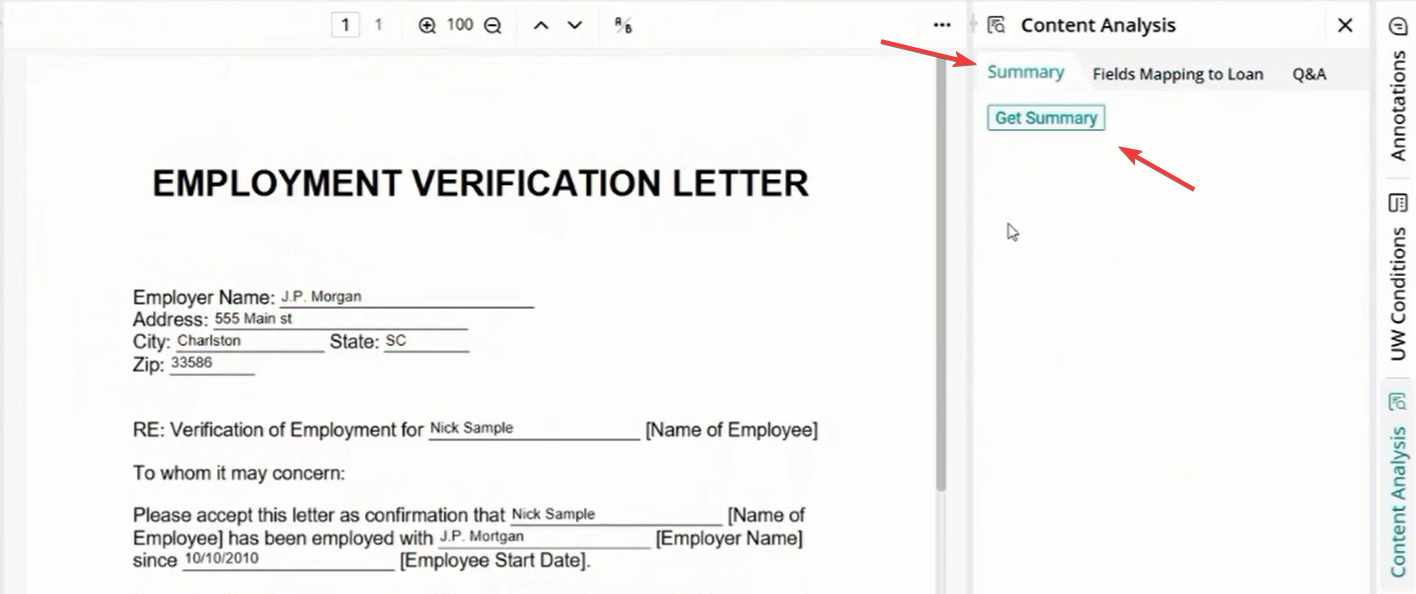
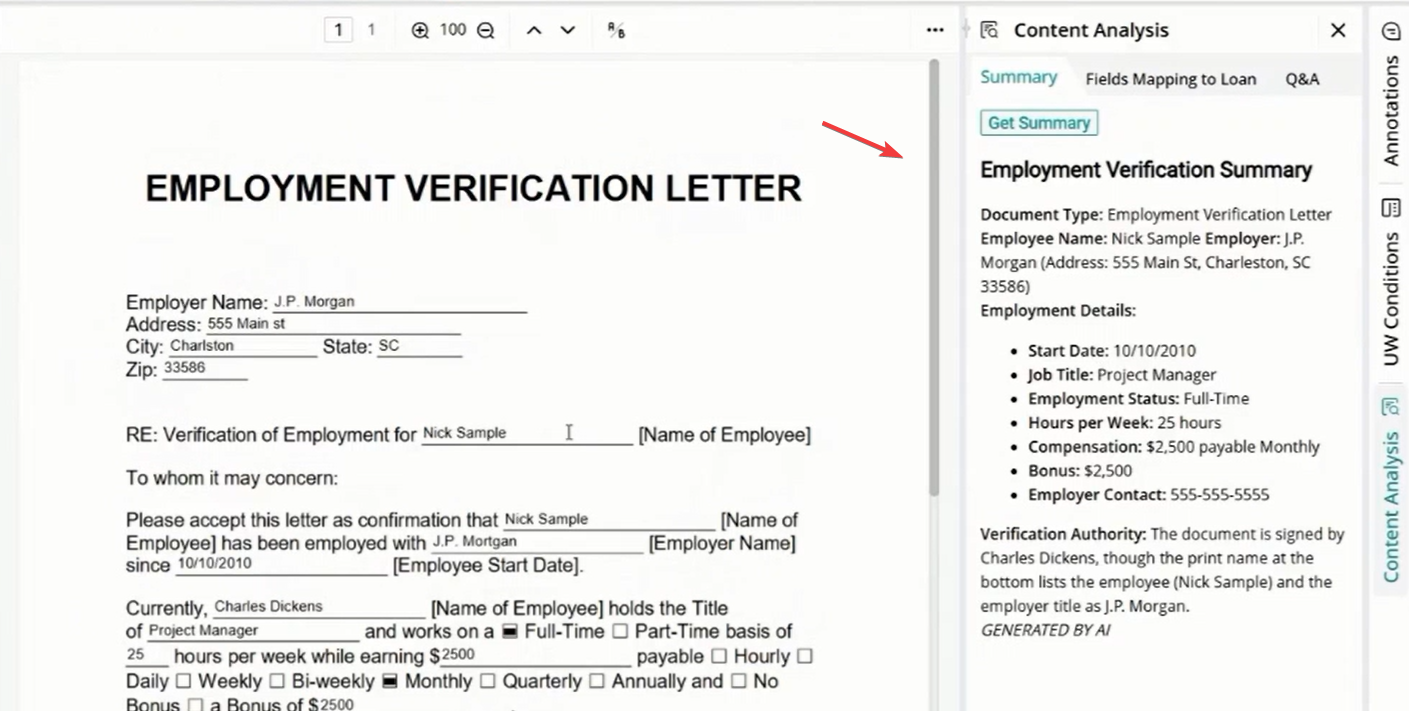
The Content Analysis tab leverages AI to provide an instant overview of any document. By clicking Get Summary, the system extracts critical data points from the file.
For example, on an Employment Verification Letter, the AI will identify and list the Start Date, job title (e.g., project manager), employment status (full-time), and compensation details (e.g., $2,500 monthly).
Resolving Data Discrepancies
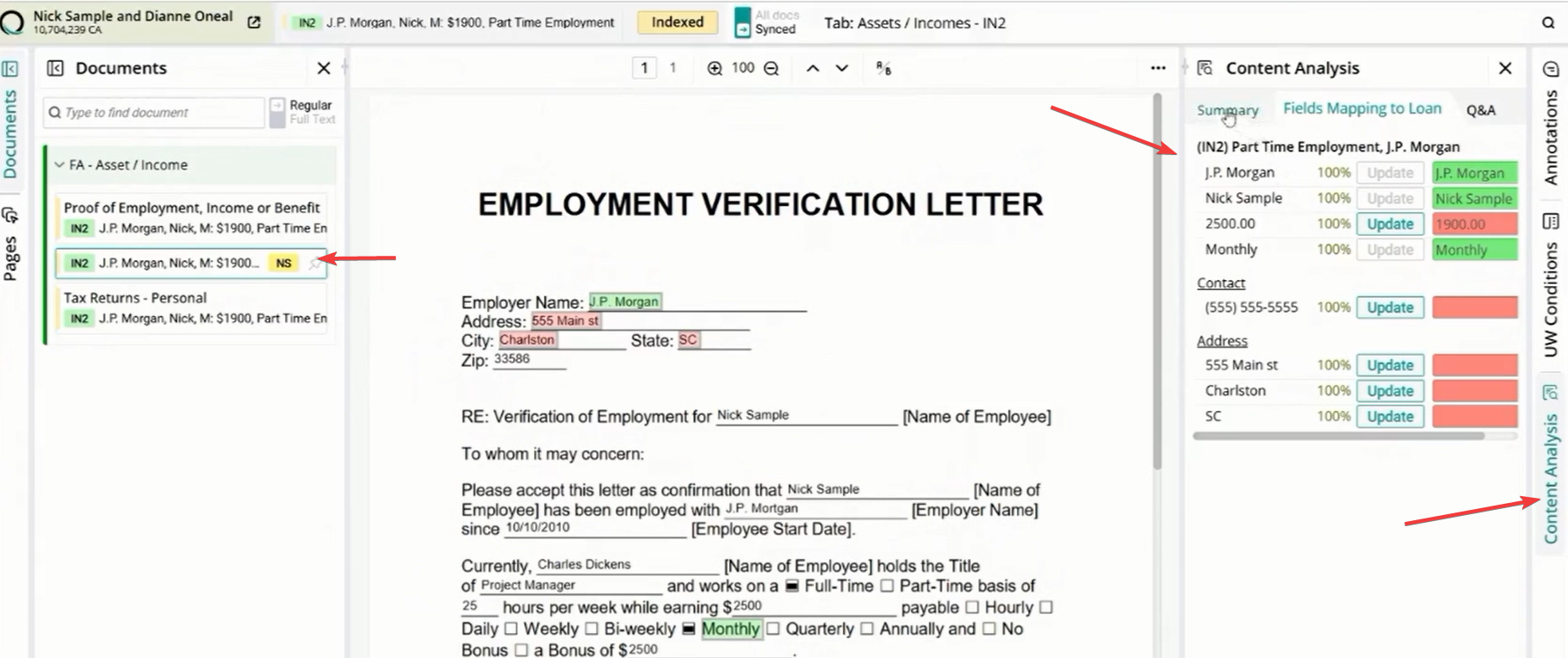
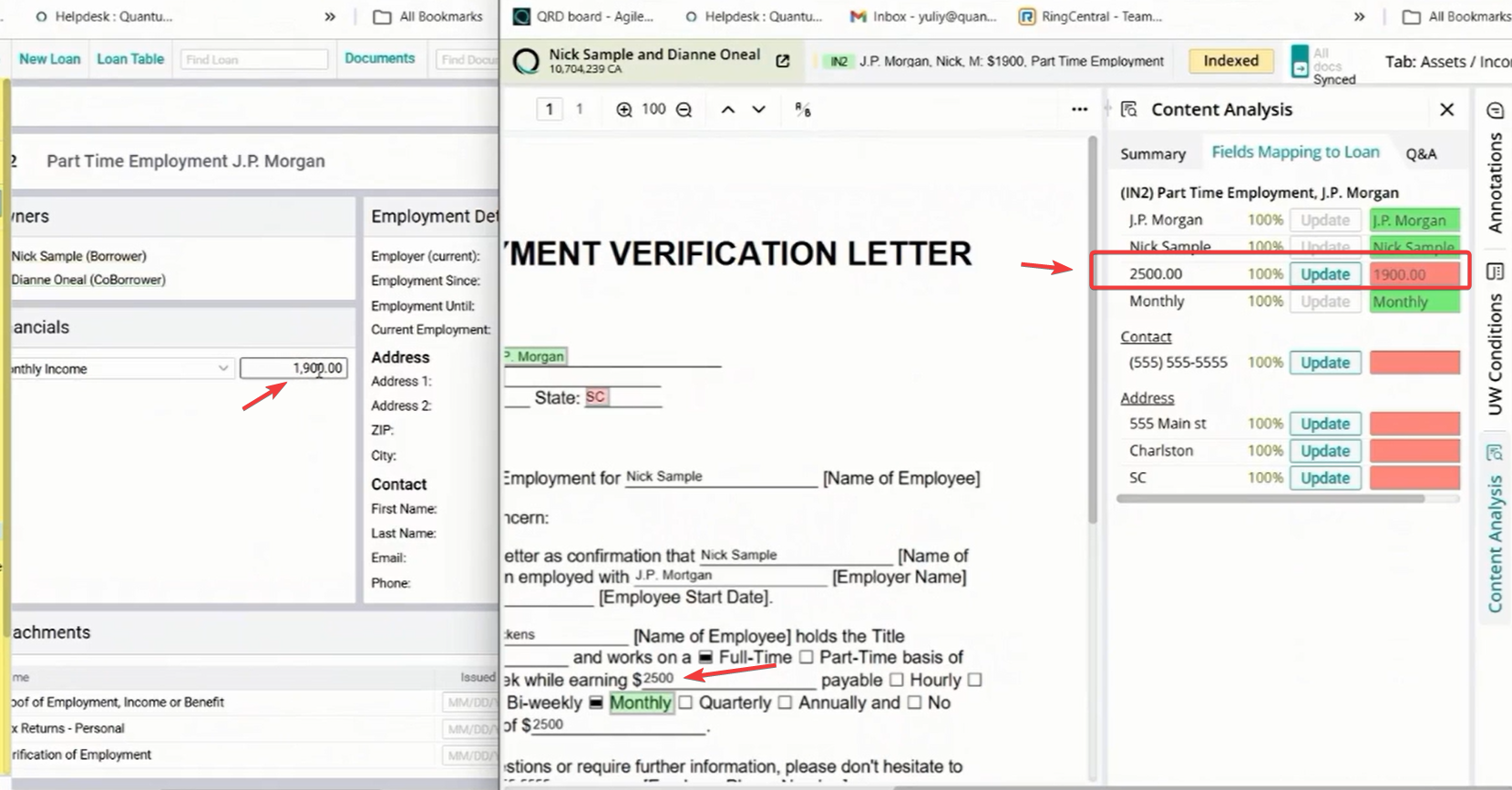
The system automatically compares the data extracted from the document against the information already entered in the loan file.
Any mismatches are highlighted in red. For instance, if the document shows a monthly income of $2,500 but the loan file lists $1,900, the system flags this discrepancy immediately for your review.
One-Click Data Sync
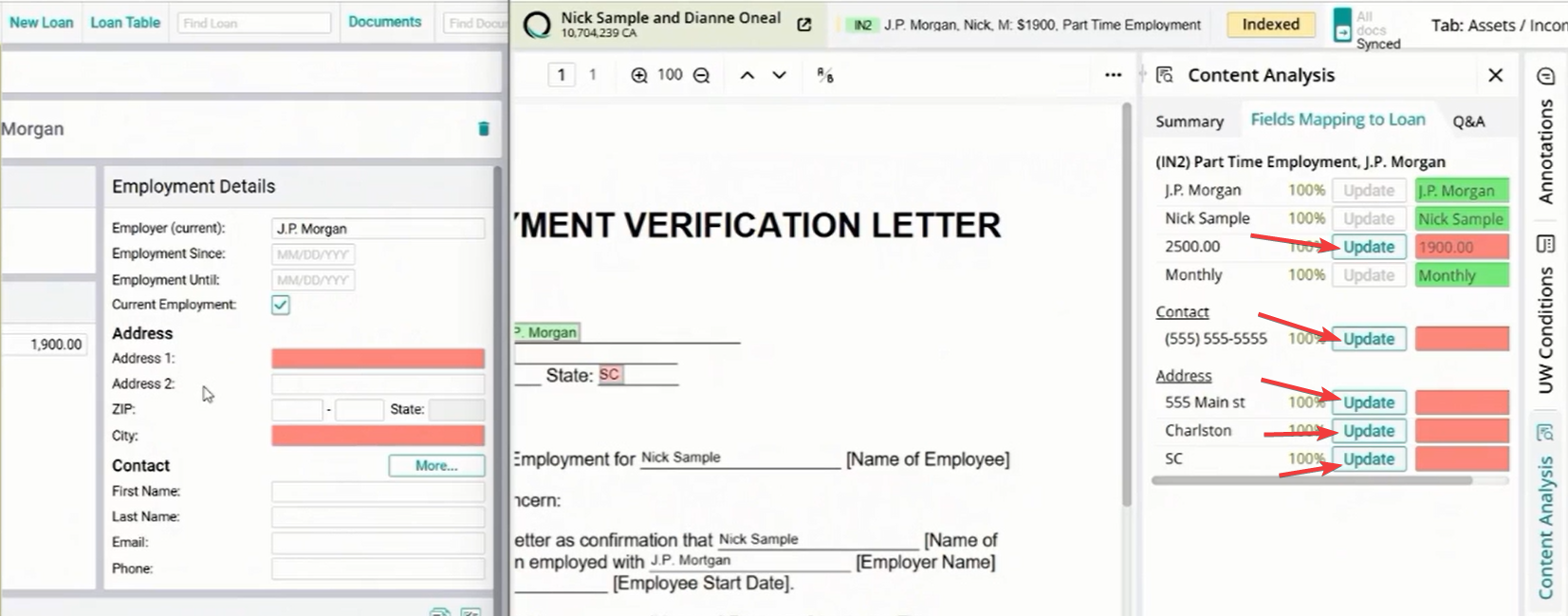
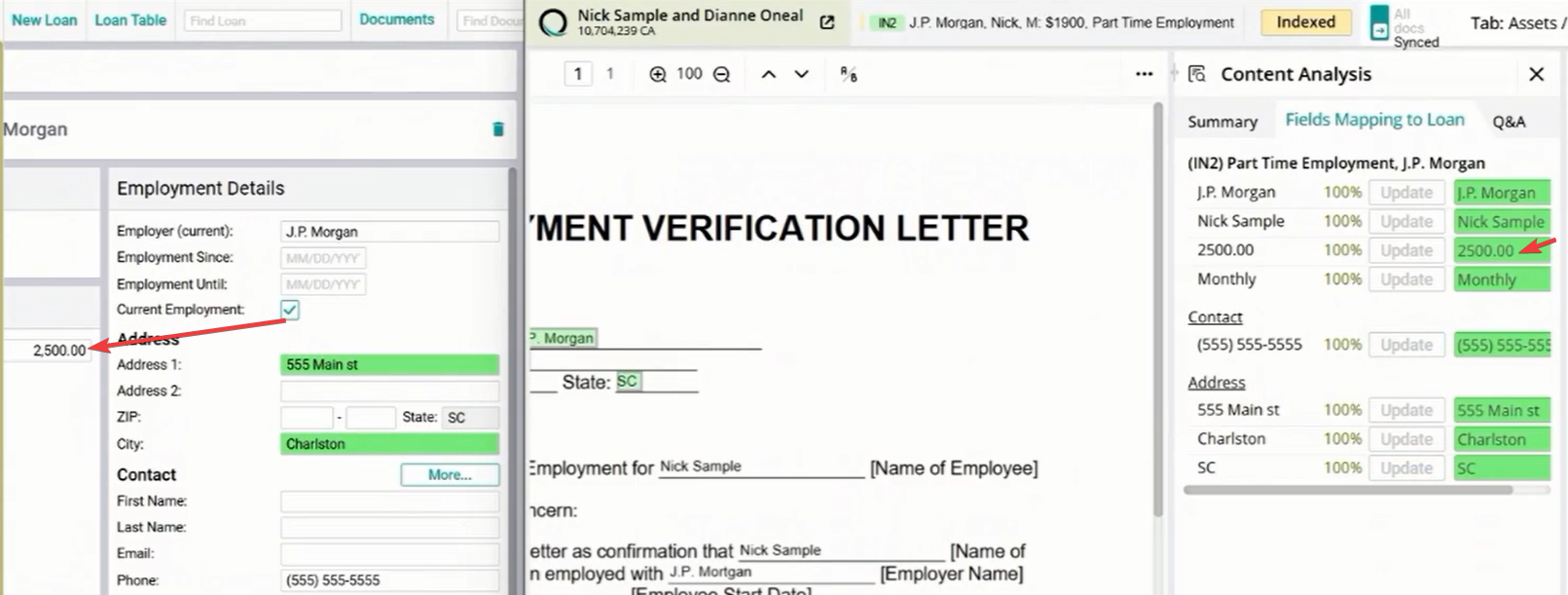
Once a discrepancy is identified, you can resolve it instantly. The Fields Mapping to Loan tab provides an Update button for each verified data point.
Clicking Update will automatically push the verified information (such as Address, City, State, or Phone Number) from the document directly into the loan software, ensuring 100% data accuracy without manual entry.
Interactive Document Q&A
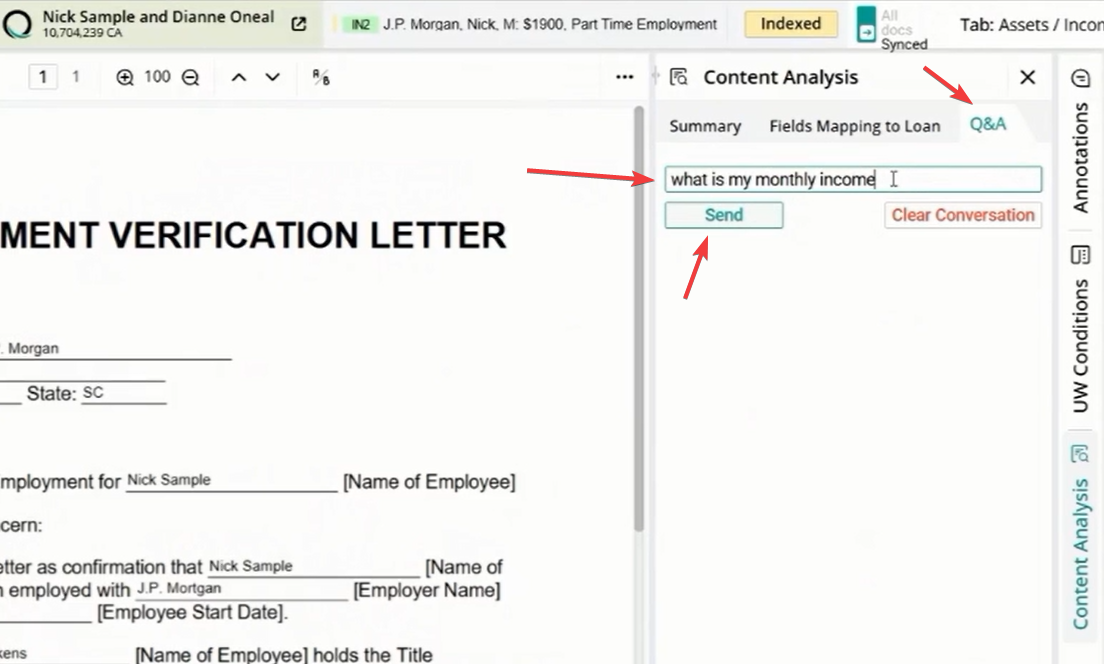
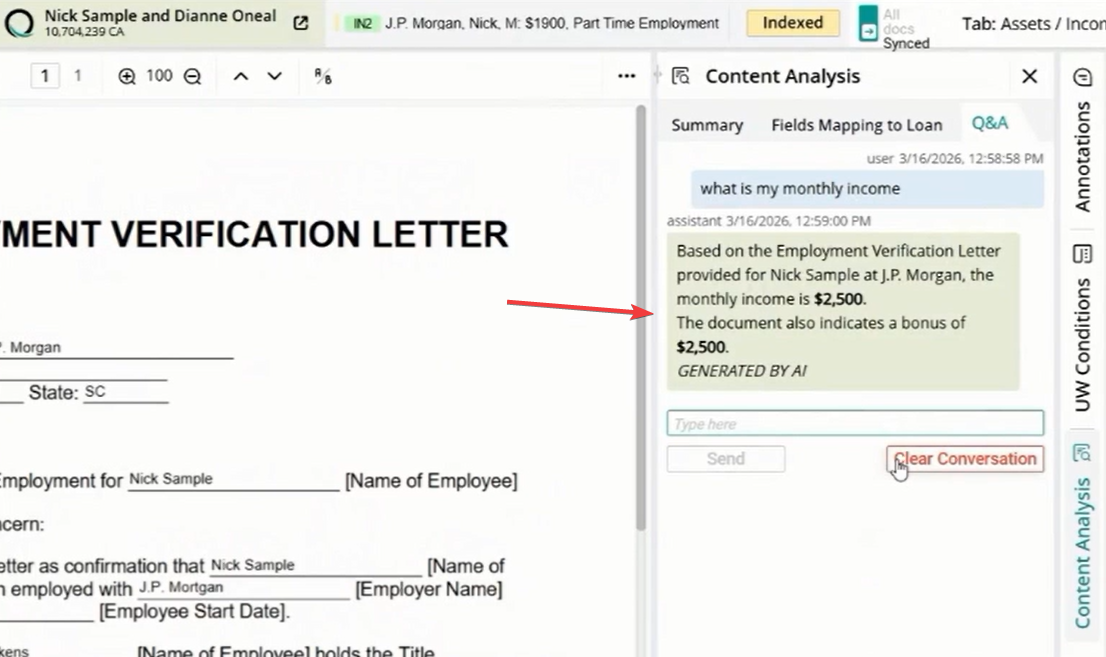
The Q&A tab allows you to have a natural language conversation with the document. You can ask specific questions to find information that might be buried in long files.
Example query: "what is my monthly income" The AI will scan the document and return the exact figure found, such as $2,500, providing a fast and efficient way to verify complex data.
Video