
Switching Between Custom Views
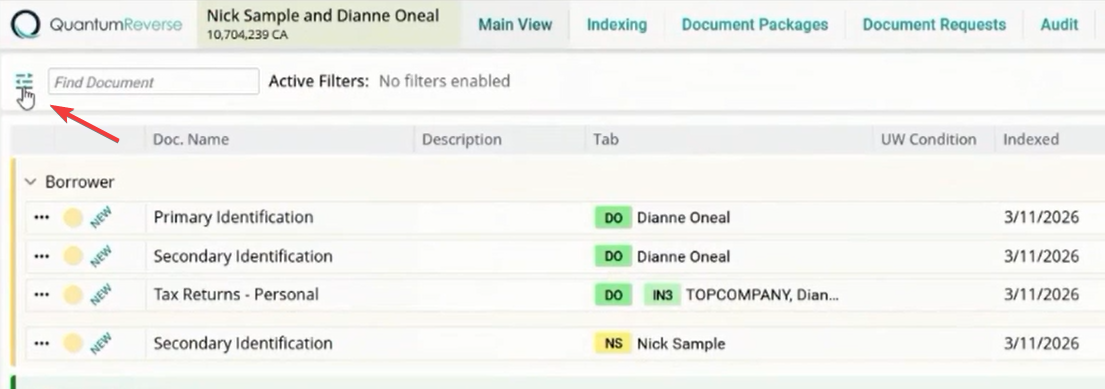
When clicking on the filter icon on the top left-hand side, you might have various views that you will be able to access that will be developed by your company administrator.
The various views are designed to make it easy to work with documents based on your responsibility within the organization.
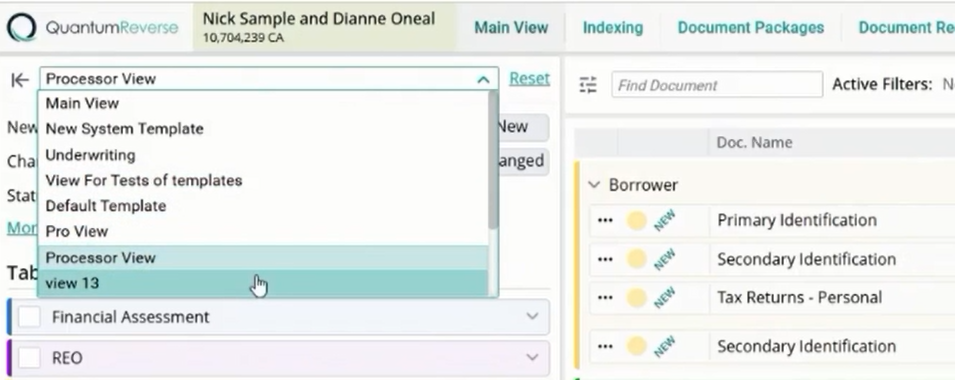
Role-Specific View Details
Different views provide different data points tailored to specific workflows.
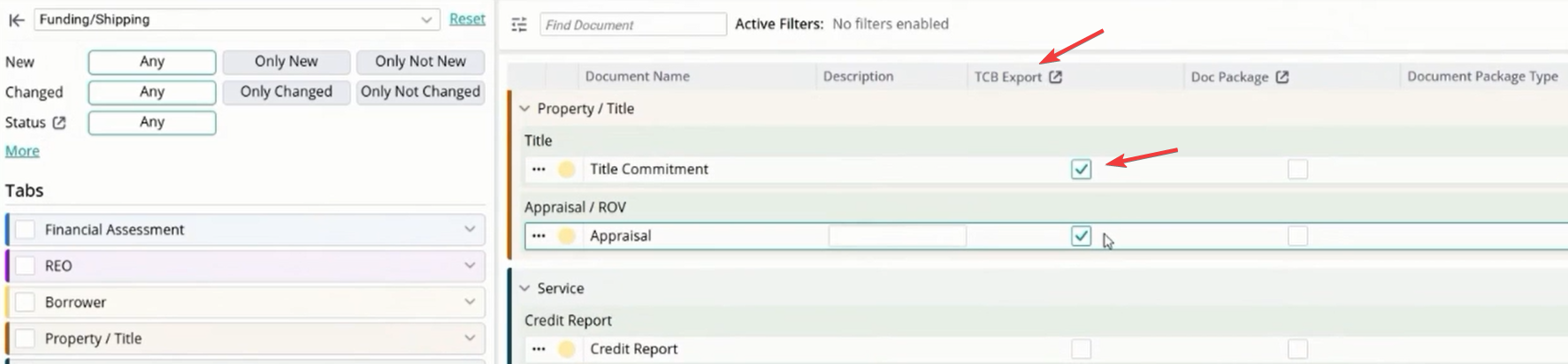
Processor View: Displays document names, allows for description entry, and shows fields associated with that specific view.Underwriting View: Includes columns like "Uploaded date" to help underwriters track when specific documents were added to the system.
Closing/Funding/Shipping: Custom views can include export-specific columns like TCB Export (Texas Capital Bank) or Doc Package indicators
Processor View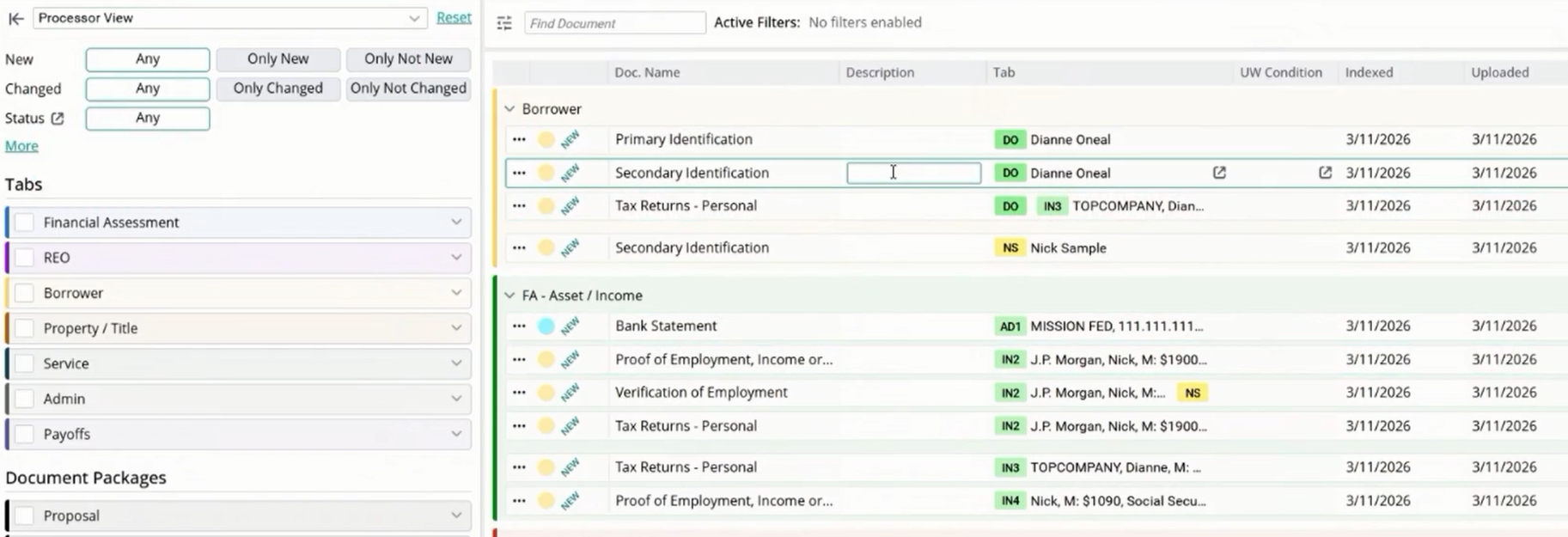
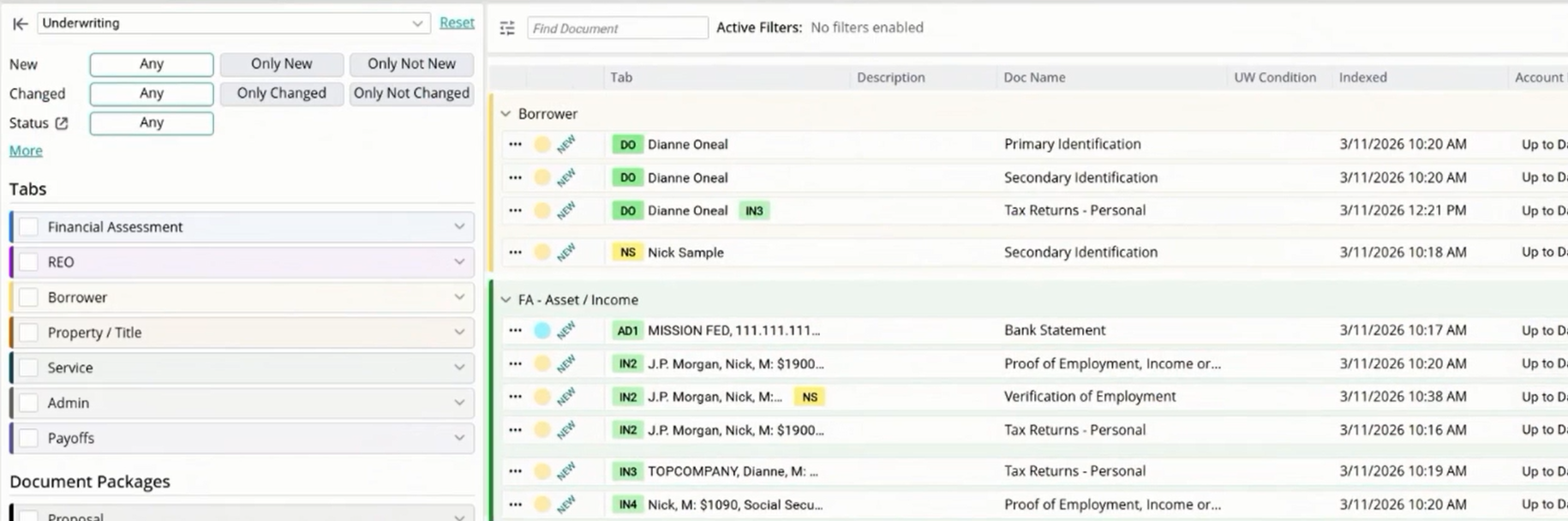
Filtering by New and Changed Documents
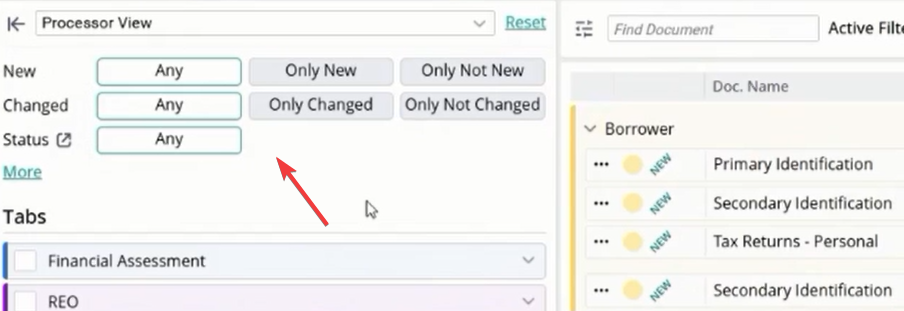
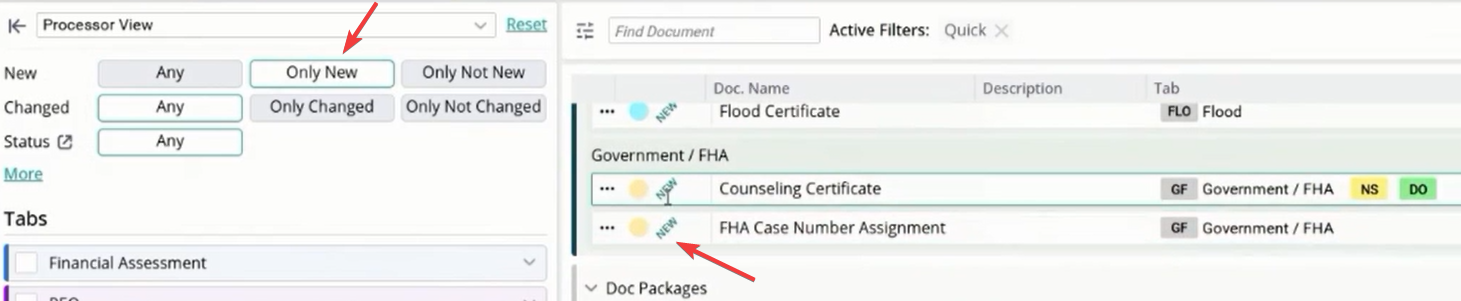
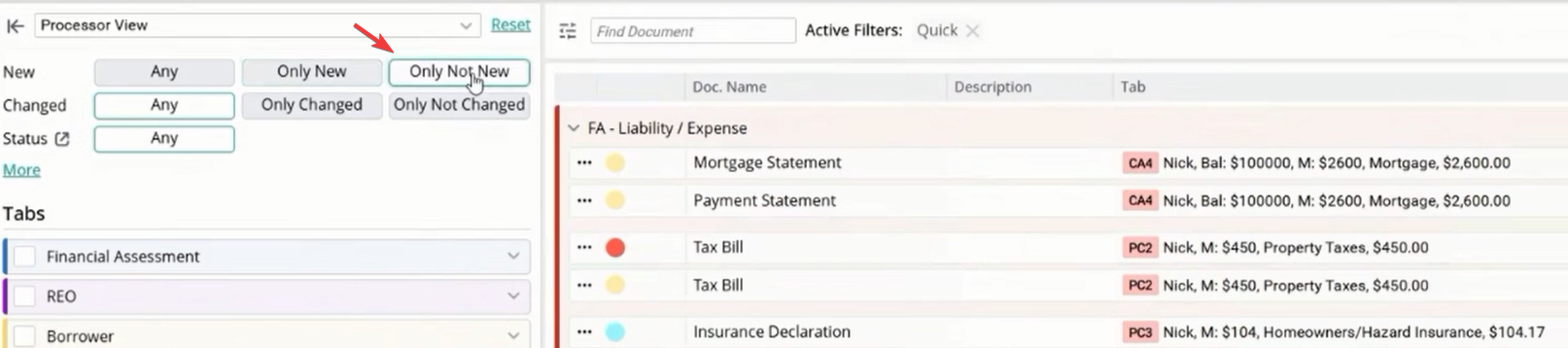
Use the status toggles to isolate documents based on their review state.
Only New: Filters the list to show only documents that have not yet been reviewed by you.Only Not New: Shows documents that have already been reviewed.
User-Specific: Note that the "New" status is tracked per individual user, ensuring your personal review progress is maintained.
Changed Status: You can also filter by Only Changed or Only Not Changed to track updates to existing documents
Filtering by Document Status
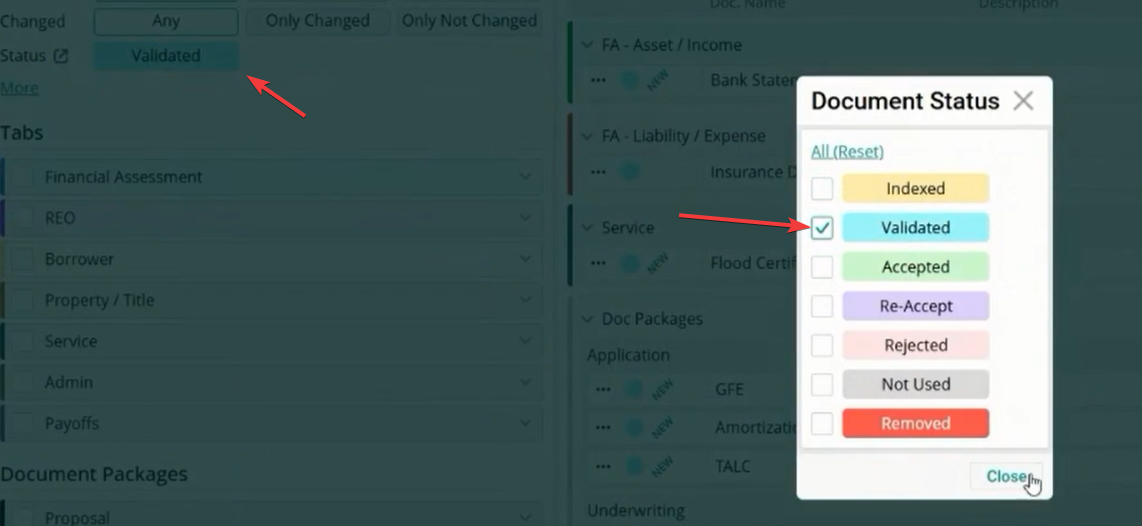
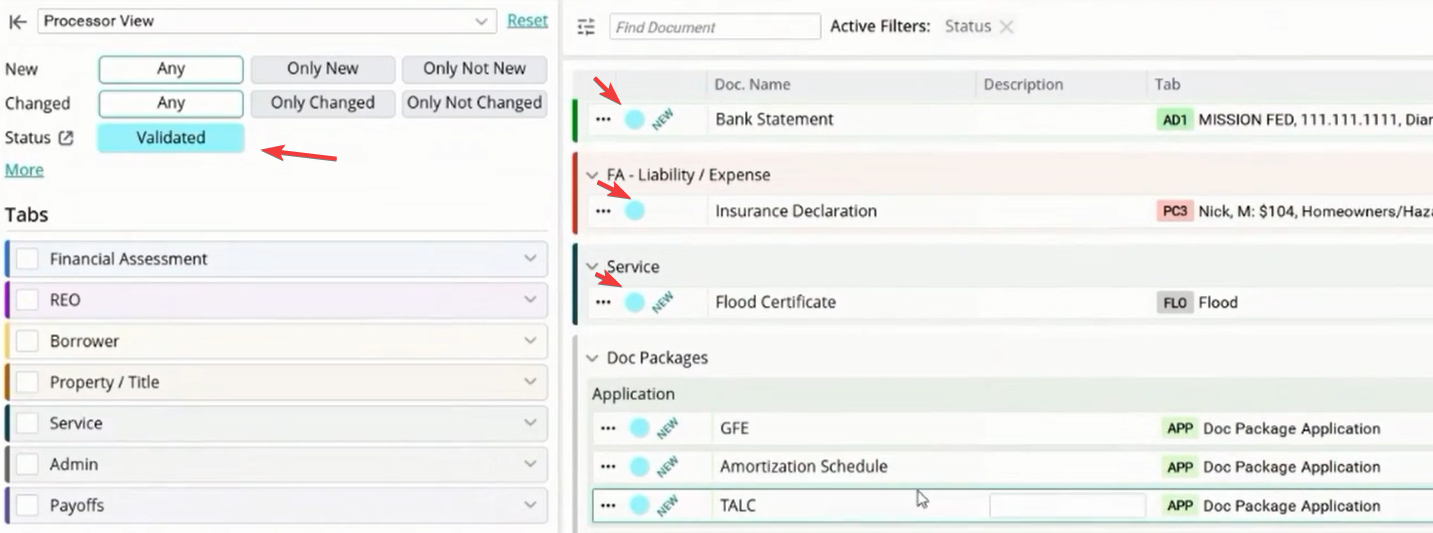
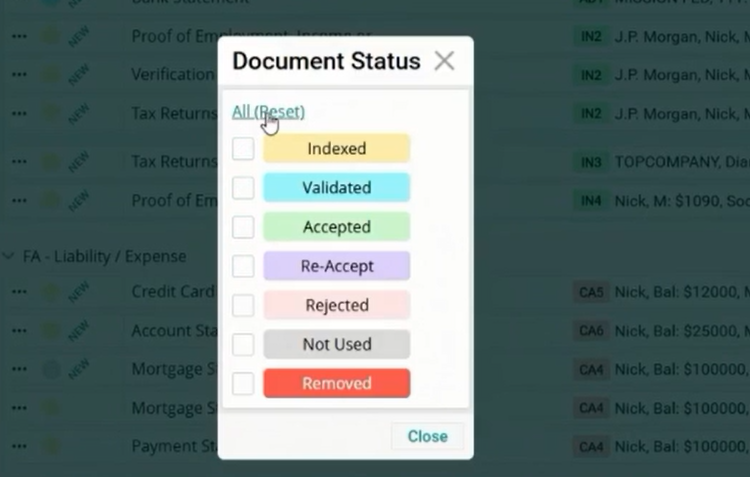
The Status filter allows you to view documents based on their processing stage. Click the box next to "Status" to open the selection modal.
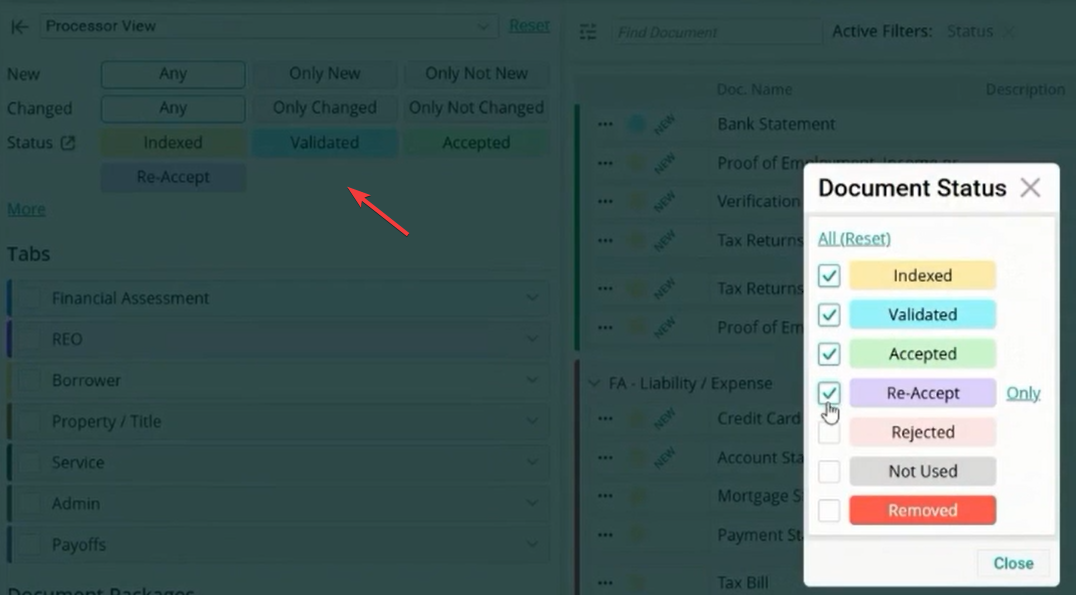
Status Options: Select from Indexed, Validated, Accepted, Rejected, and more.Multi-Select: You can select multiple statuses simultaneously to create a custom filtered list.
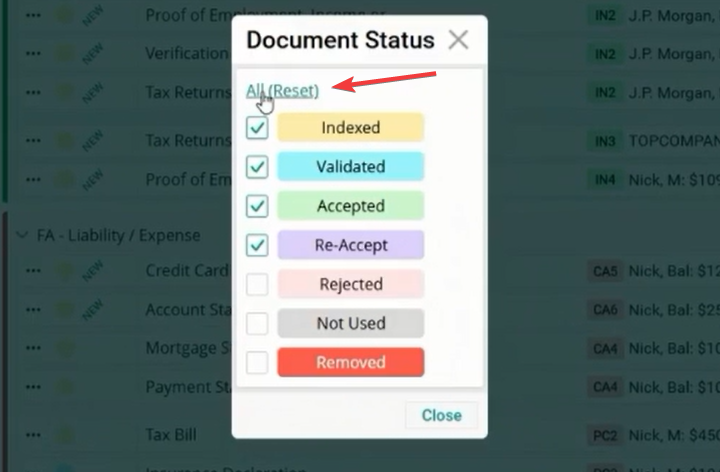
Reset: Use the Reset button to clear all status filters and return to the full document list.
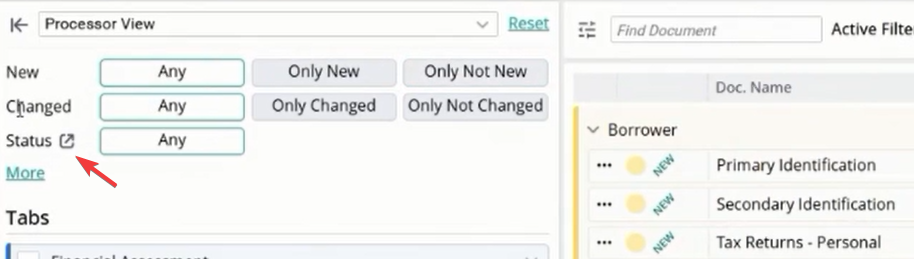
Indexed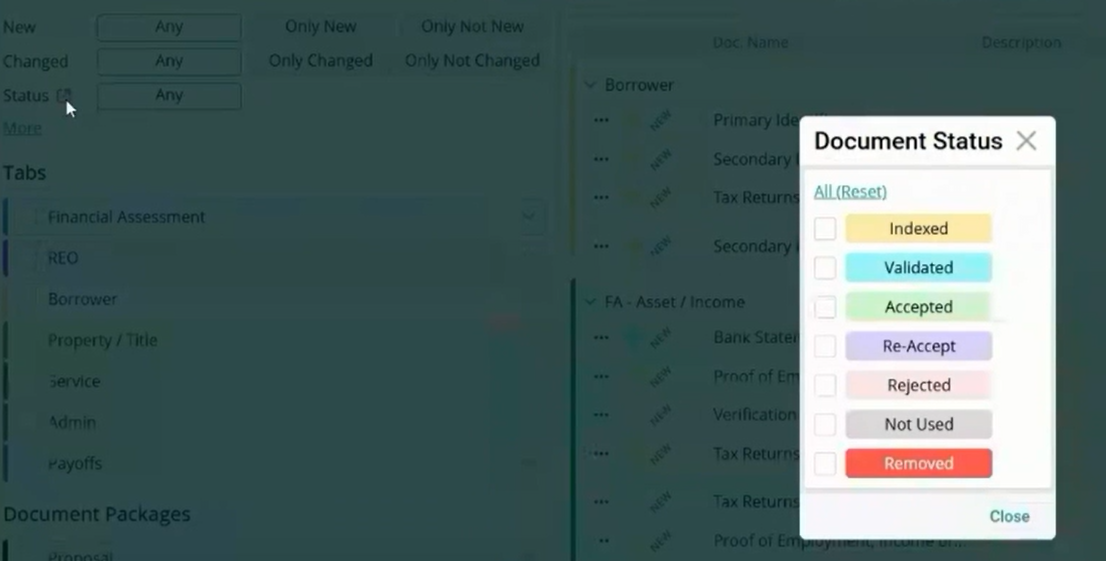
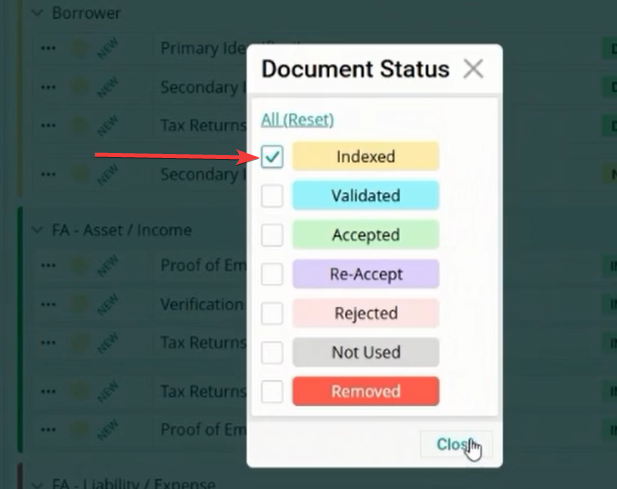
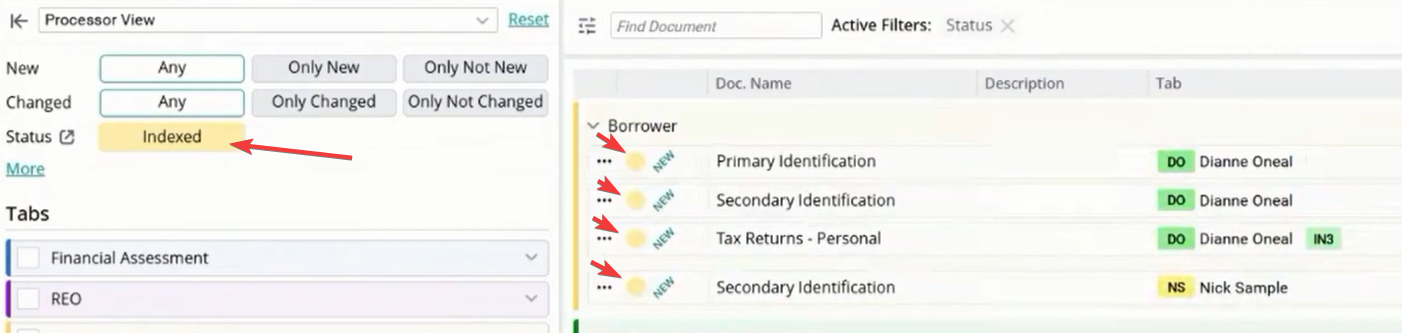
Validated
Multi-Select
Advanced Filters: Recorded & Closing
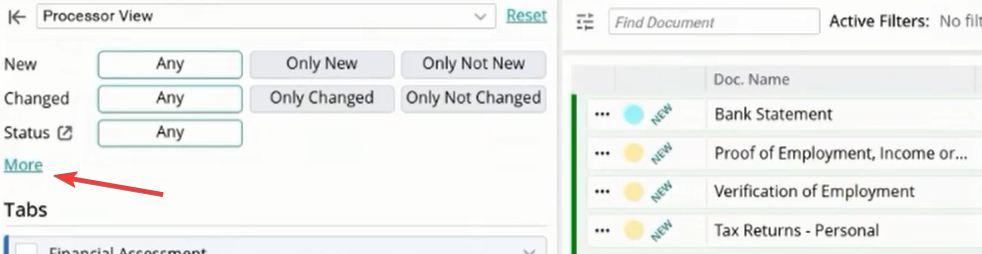
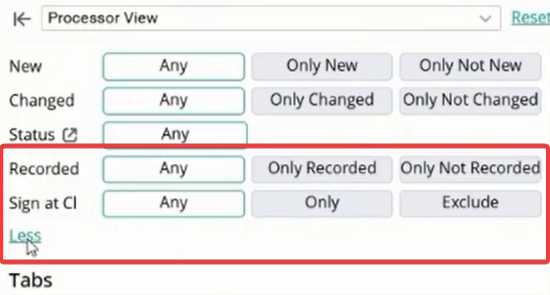
Click the More button to access specialized filters for specific document types.
Recorded Status: Filter by only recorded or only not recorded documents.Sign at Closing: Isolate documents that have been marked specifically for signing during the closing process
Filtering by Category Tabs
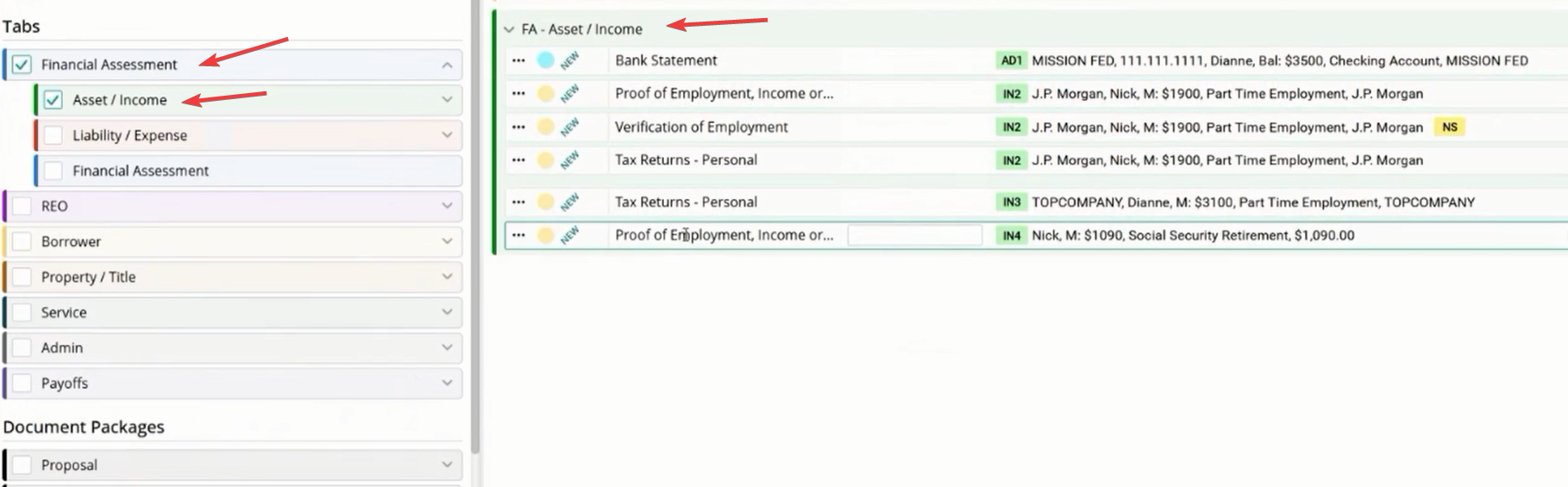
The left-hand Tabs panel allows for rapid navigation through document categories.
Category Selection: Click on a tab like Financial Assessment, Borrower, or Liabilities & Expenses to filter the main list to that category. Drill Down: Use the chevron icon next to a tab to drill down into sub-categories, such as viewing only asset/income documents within the financial assessment tab.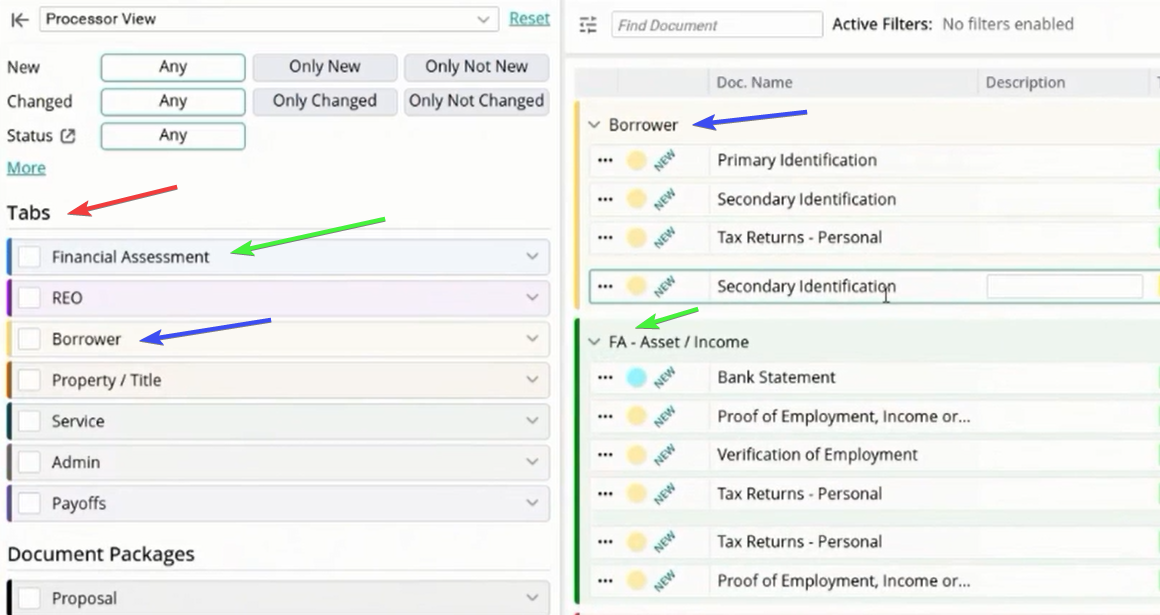
Using the Find Document Search
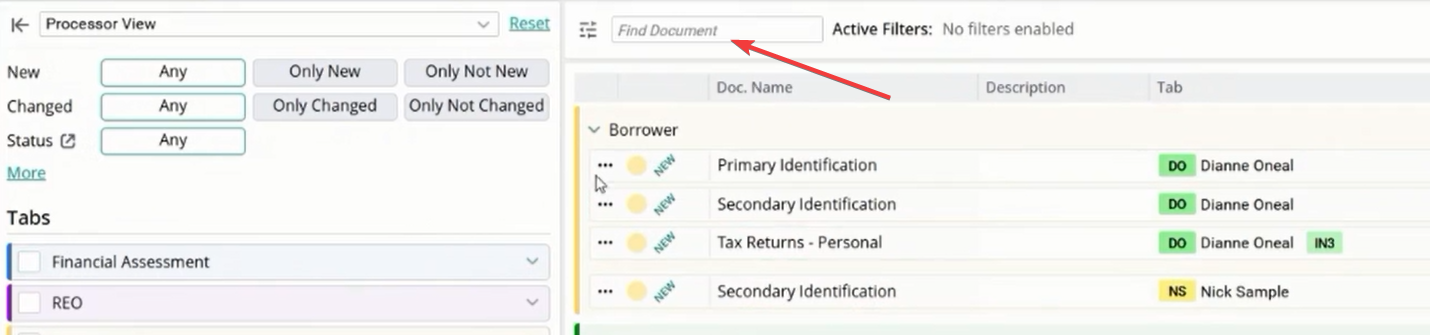
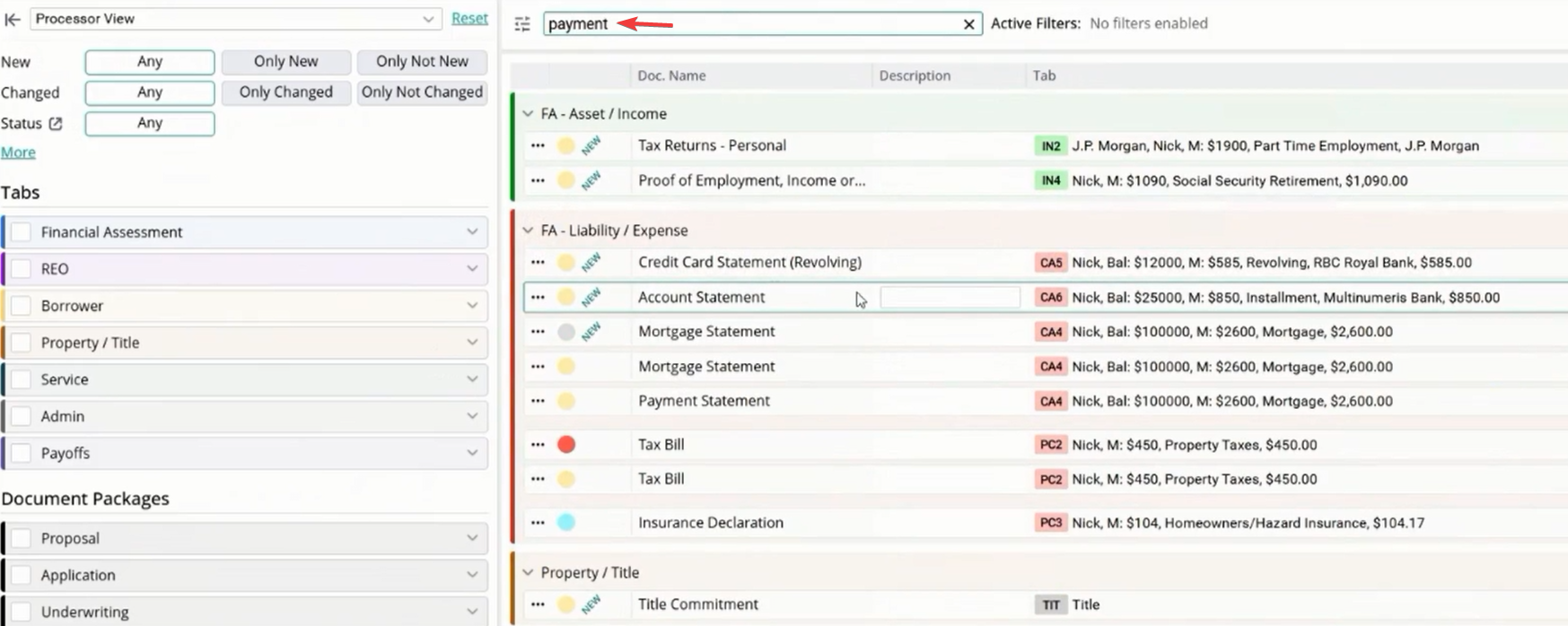
The Find Document search bar provides powerful text-based filtering across the entire file.
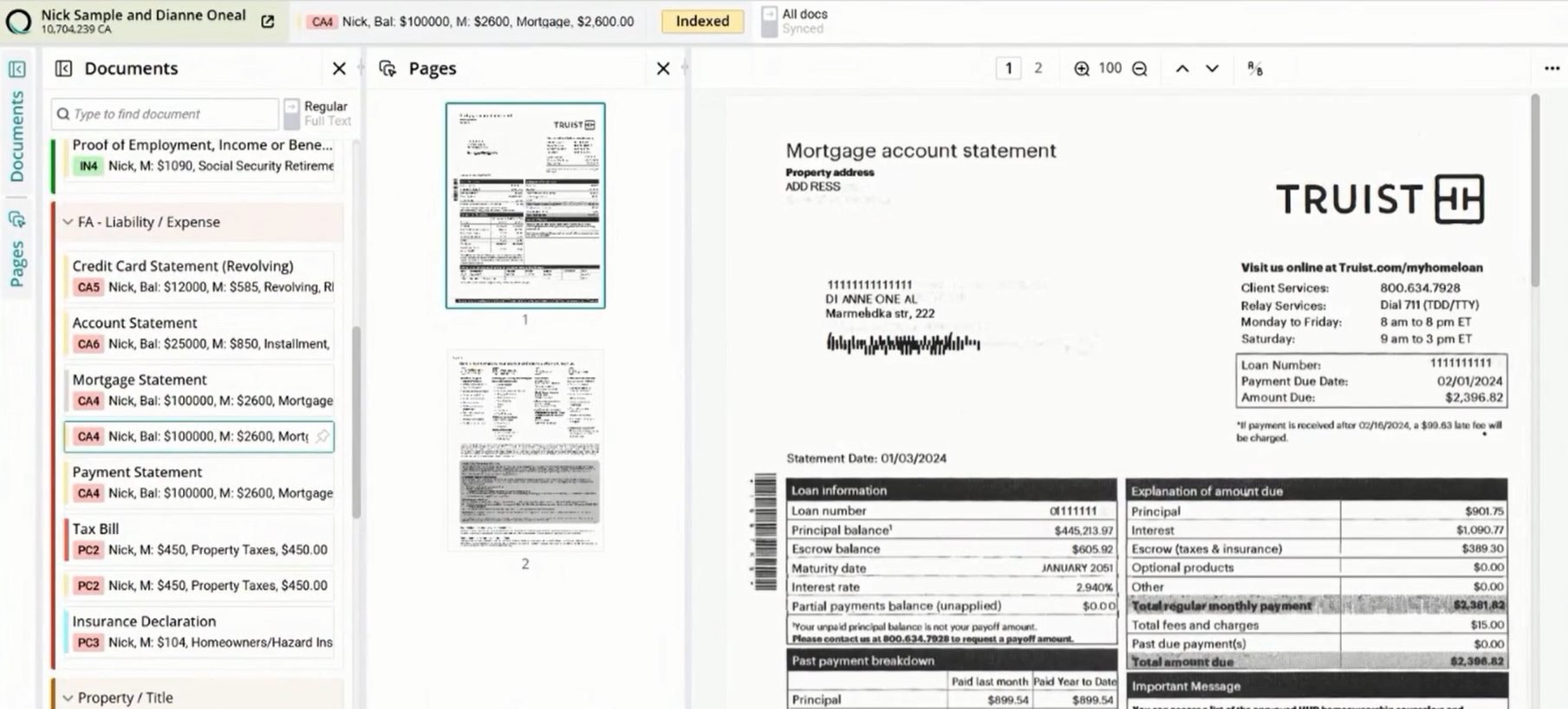
Keyword Search: Type a keyword like "payment" or "payment amount" to instantly find documents containing that text in their name or metadata.Direct Review: Clicking a search result allows you to open and review the document immediately within the integrated viewer.
Video Timestamp: [6:17]
Video