
This guide explains how to upload documents into Quantum Reverse. There are currently three options for uploading documents into separate sections.
Option 1: Uploading from the Loan File
Once you have the loan open, you will be able to upload documents directly into document management.
Go to Documents
With the loan open, go to the Documents menu in the top navigation bar.
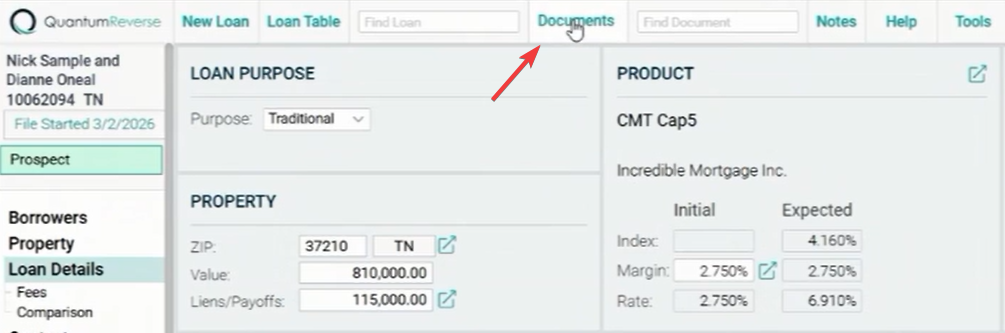
With the loan open, go to the Documents menu in the top navigation bar.
Drag and Drop or Choose File
You have two ways to upload here: Drag and Drop directly into the "Upload Multiple Files" section, or click to choose a file from your computer.
Drag and Drop
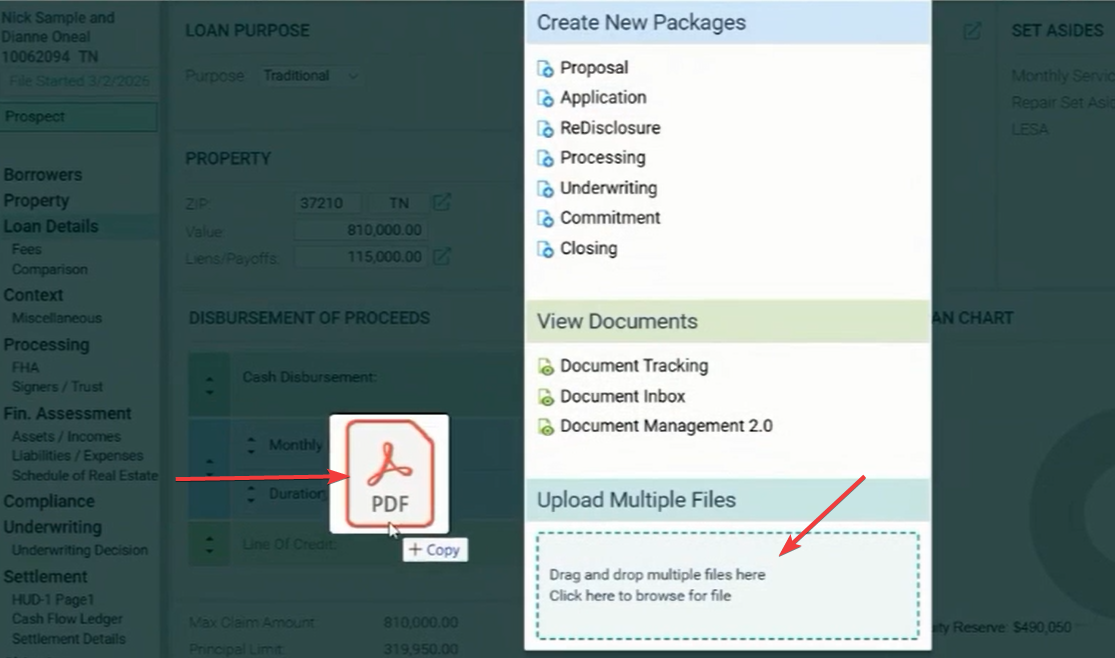
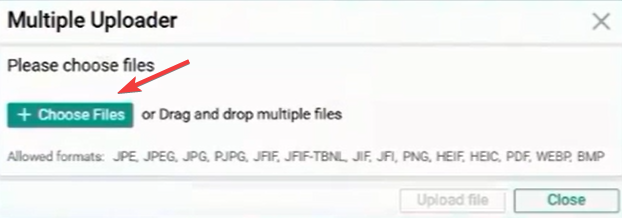
You have two ways to upload here: Drag and Drop directly into the "Upload Multiple Files" section, or click to choose a file from your computer.
Drag and Drop
Chose Files
Click Upload Files
Once you've dragged and dropped a document, the system finds how many files are being uploaded. Click the Upload Files button to finish.
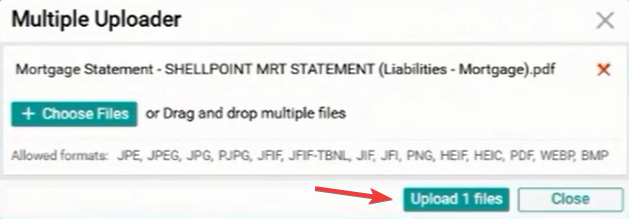
Once you've dragged and dropped a document, the system finds how many files are being uploaded. Click the Upload Files button to finish.
Option 2: Uploading via Document Management 2.0
A second place to upload your documents is through the DM 2.0 portal.
Open Document Management 2.0
Click Documents, then click Document Management 2.0.
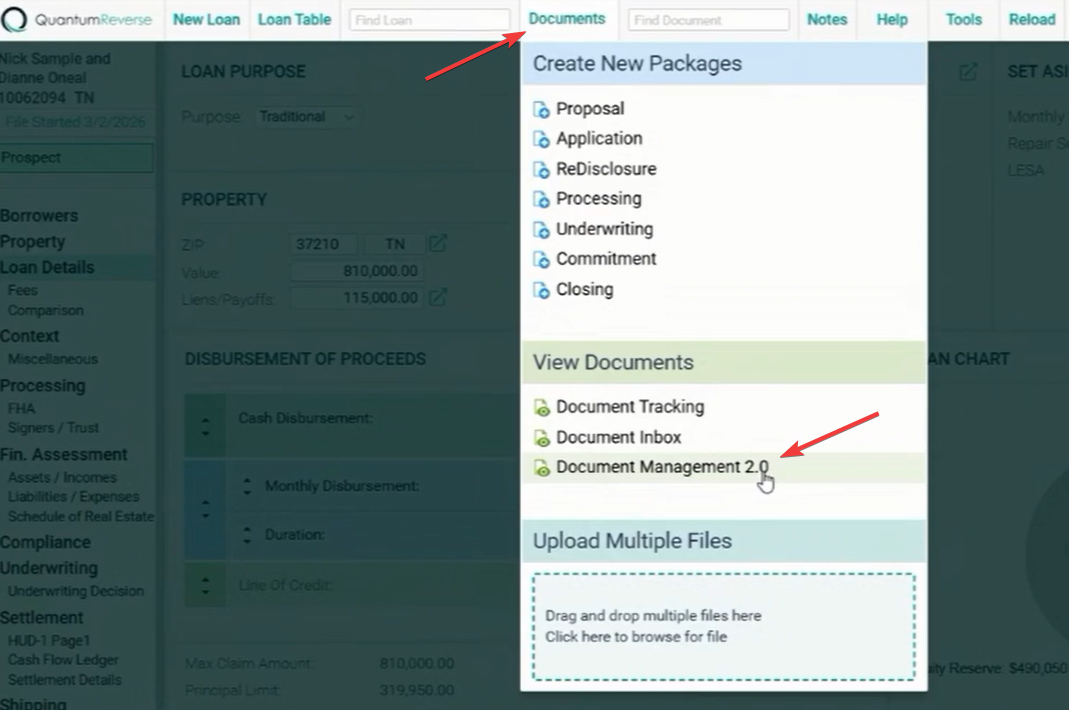
Click Documents, then click Document Management 2.0.
Click on "Indexing."
This will bring you to the main screen. What we need to do is click on the Indexing tab.
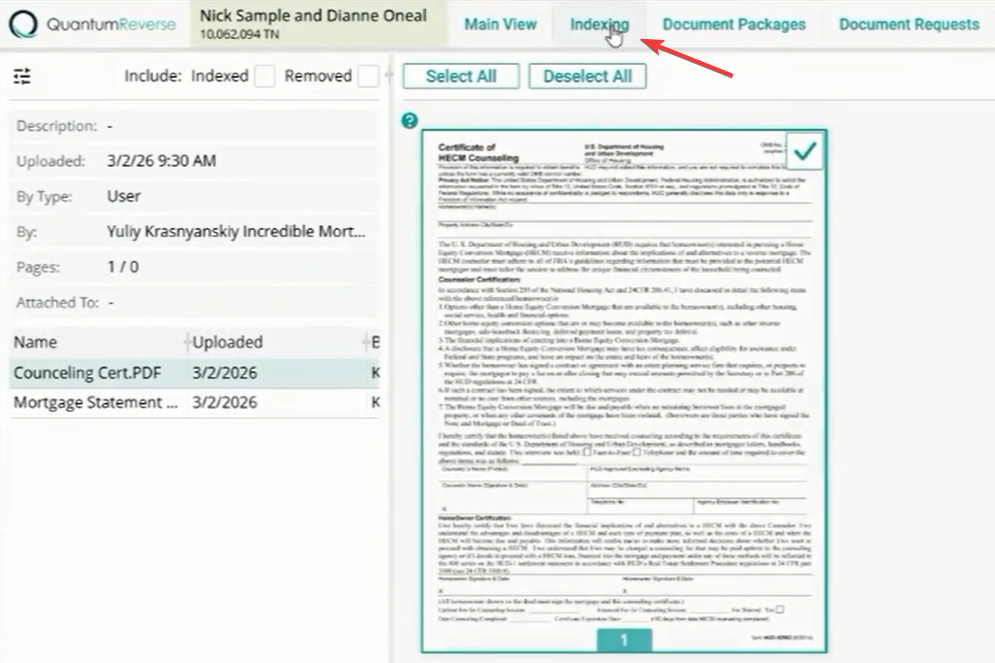
This will bring you to the main screen. What we need to do is click on the Indexing tab.
Click Multiple File Uploader
Within the indexing screen, you'll be able to click on Multiple File Uploader at the bottom left.
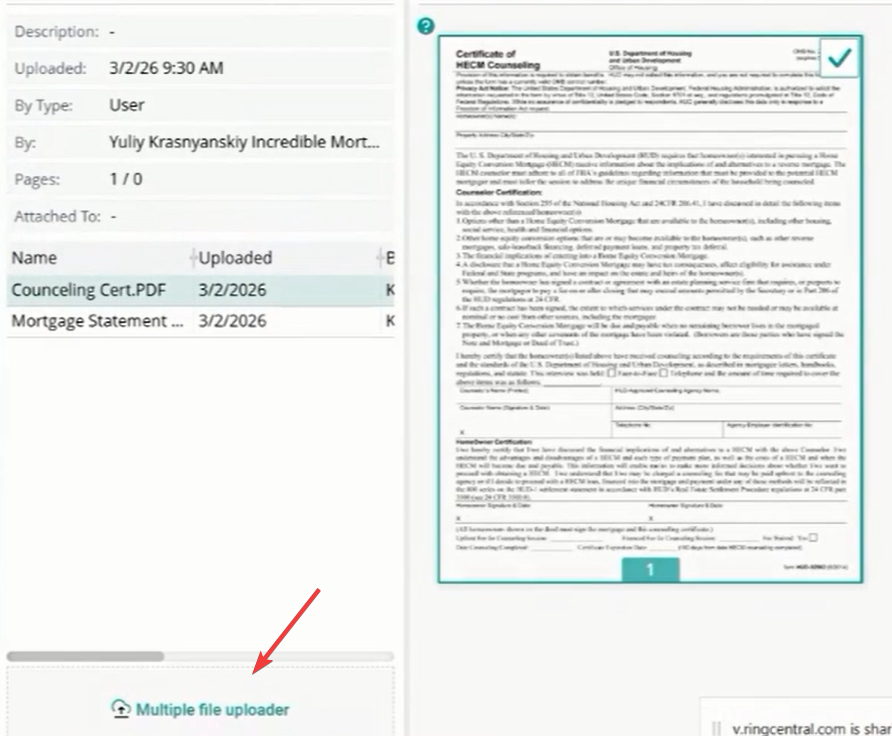
Within the indexing screen, you'll be able to click on Multiple File Uploader at the bottom left.
Select and Upload Files
Again, select the files that you're looking to upload, click on Open, and click Upload Files.
Again, select the files that you're looking to upload, click on Open, and click Upload Files.
Supported Formats
Quantum Reverse supports JPE, JPEG, JPG, PJPG, JFIF, JFIF-TBNL, JIF, JFI, PNG, HEIF, HEIC, PDF, WEBP, BMP
Option 3: Uploading via the SideKick
The third option to upload your documents is through the Sidekick.
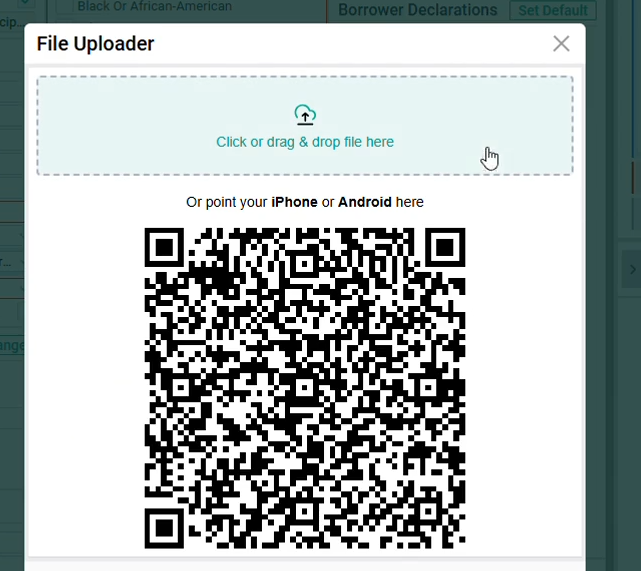
Click Upload in the upper right corner of the Sidekick
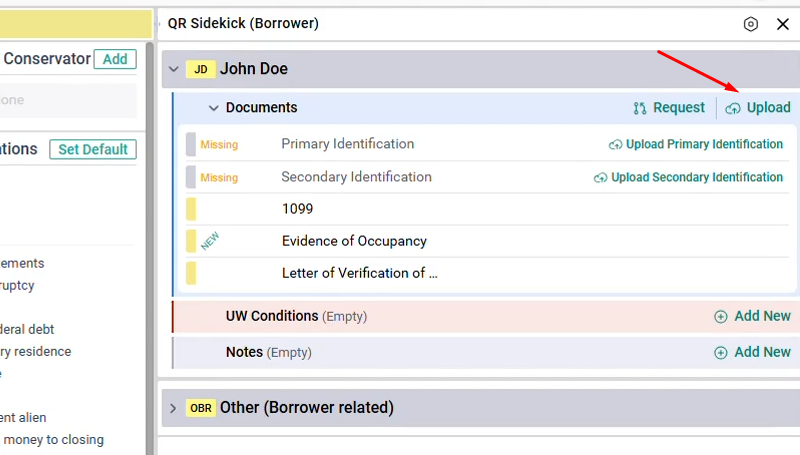
This will pop up the option to drag and drop, click to browse, or scan the QR code to send a link for uploading.
Document Upload Training Video