Introduction to Document Indexing
Document Indexing is a critical phase in document management where documents are categorized and prepared for processing. This guide covers the various configuration options available in the Indexing section of the QuantumReverse platform.
Accessing the Indexing Section
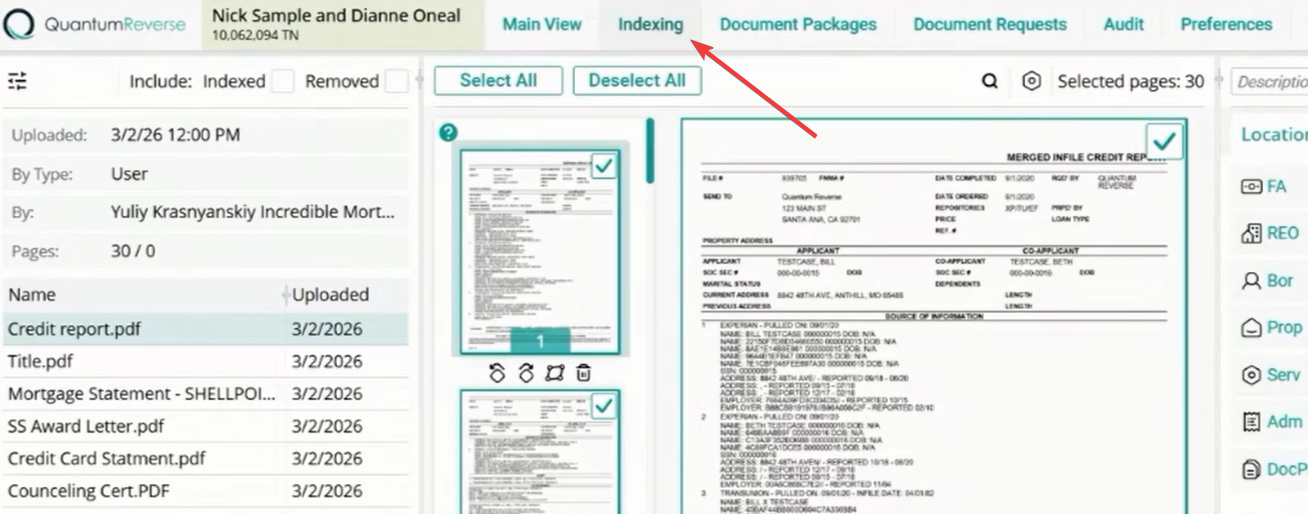
To access the configuration options, first log in to the Document Management system. From the top navigation bar, click on the Indexing tab. Once selected, the configuration panel will be visible on the left-hand side of the interface.
Preset Options: Select All Pages
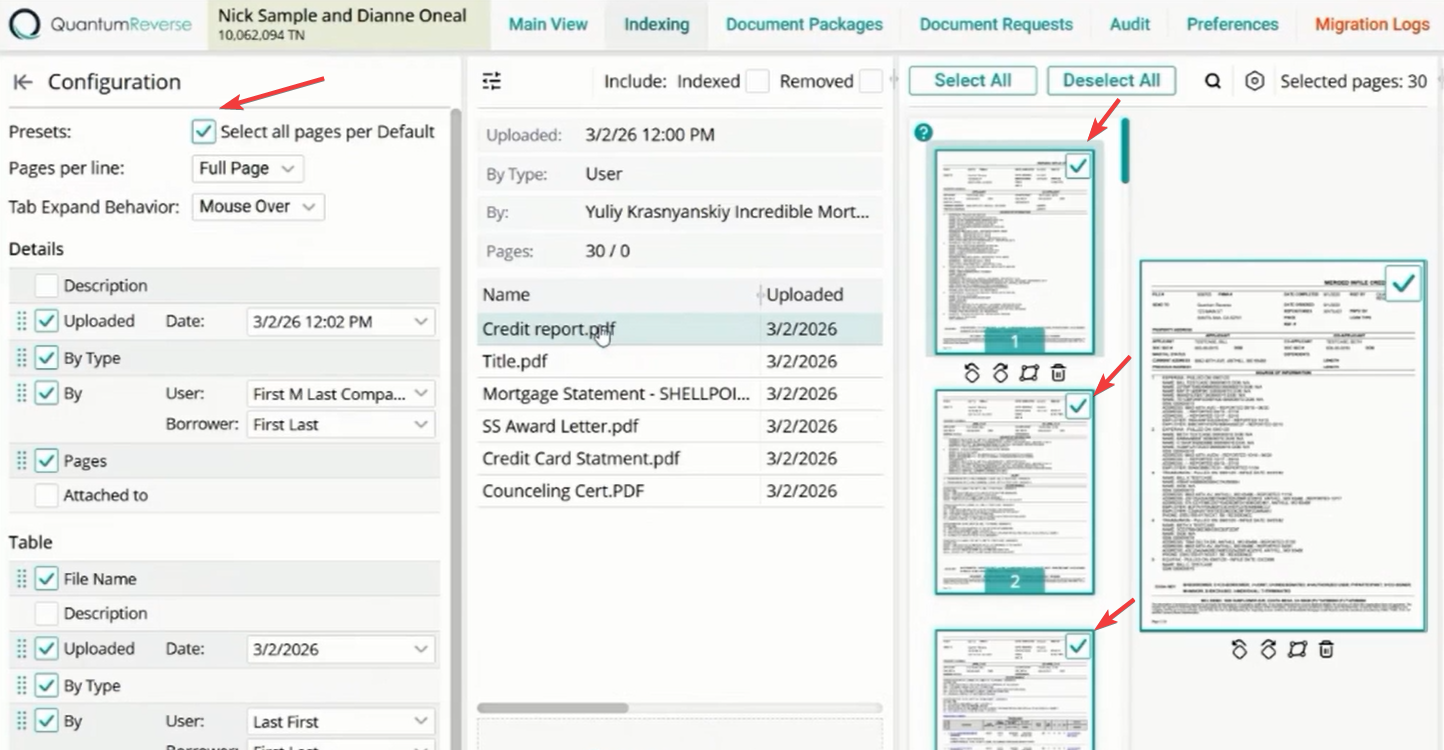
The Presets section allows you to define default selection behaviors. Select all pages per default: When this checkbox is enabled, selecting a document will automatically select all of its constituent pages for indexing. Manual Selection: If unchecked, only the first page is selected by default, requiring manual selection of additional pages if needed.
Pages Per Line Configuration
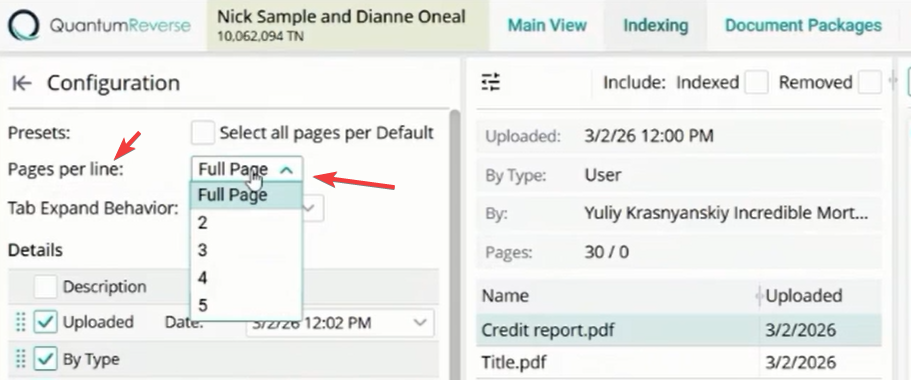
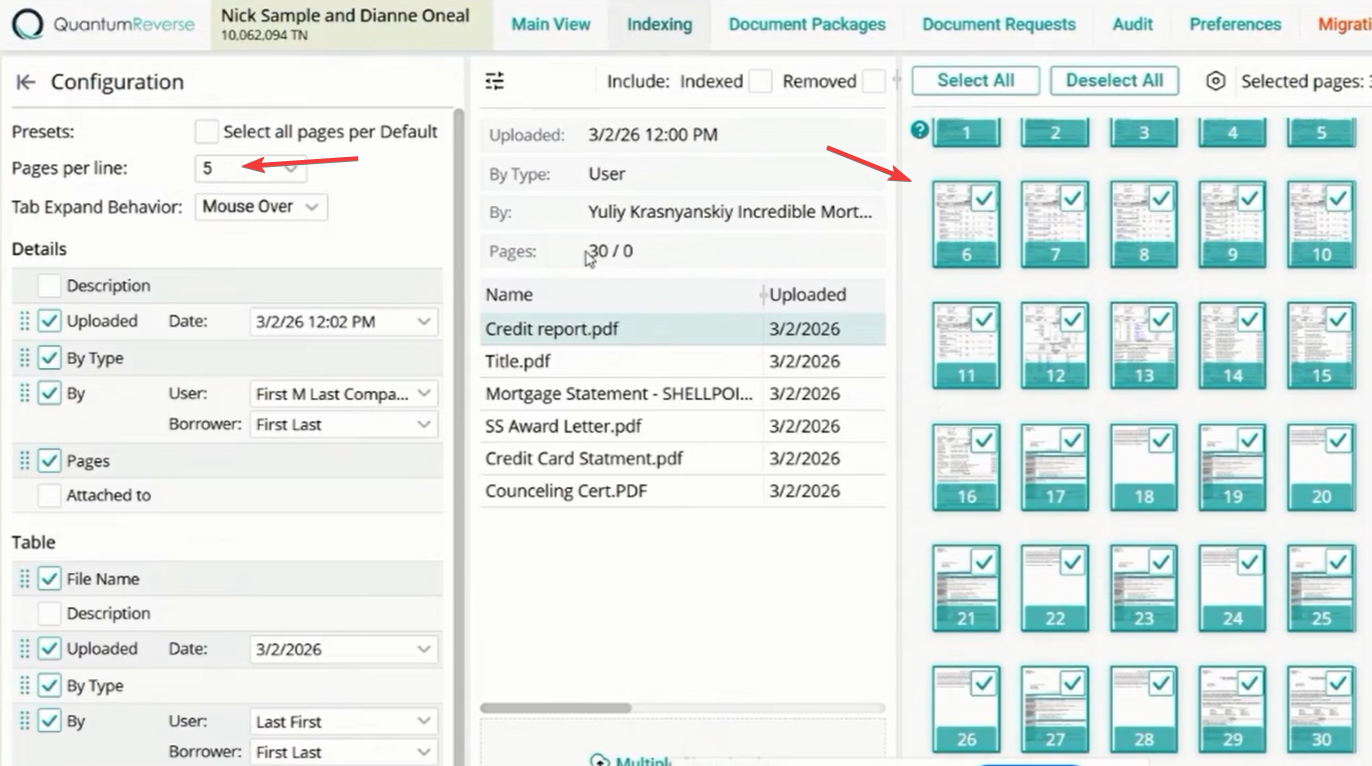
This setting controls the visual density of the document preview area. You can adjust the number of pages displayed per row to optimize your review workflow: Options: Range from 1 (full page) to 5 pages per line. Visual Impact: Increasing the number of pages per line allows you to see more content at once, which is useful for large documents (e.g., a 30-page document will display in 6 rows when set to 5 pages per line).
Tab Expand Behavior
This feature defines how the indexing categories (FA, REO, Bor, Prop, Serv, Adm, DocPac) respond to user interaction: Mouse Over: Hovering your cursor over a category icon will automatically expand it to show sub-categories and items. This is the most efficient setting for rapid indexing. Click: Requires an explicit click to expand a category, providing more controlled navigation.
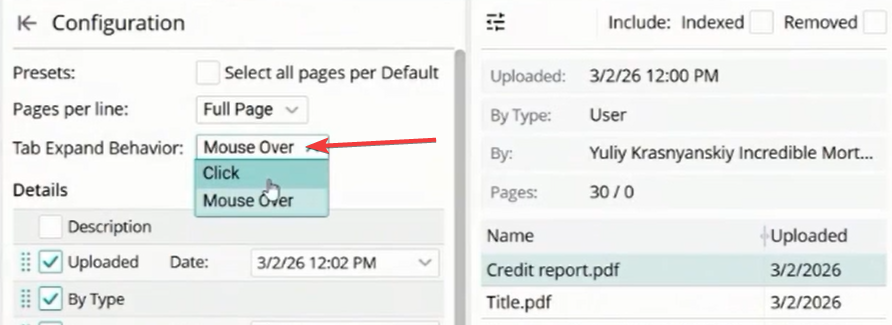
Mouse Over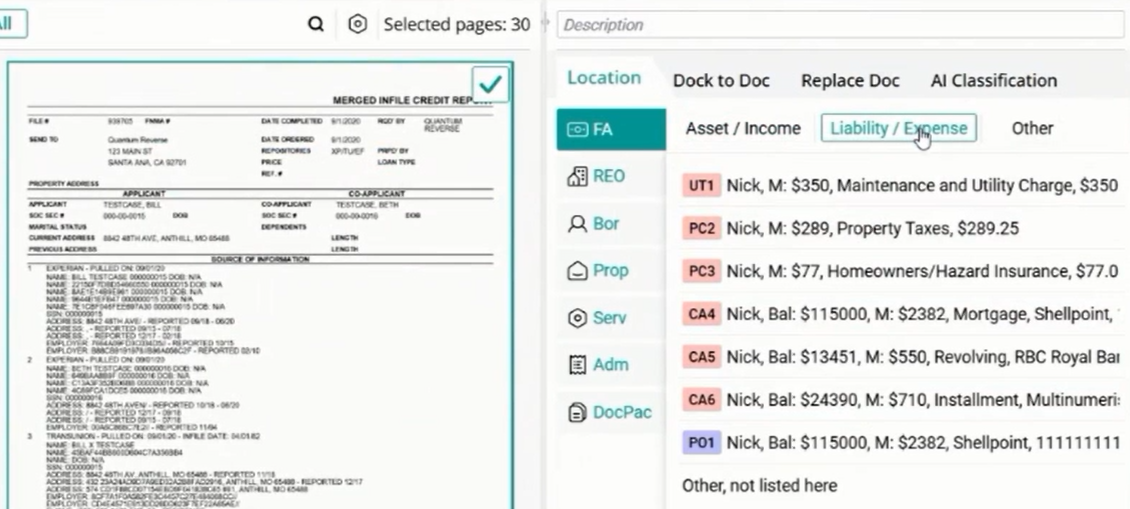
Click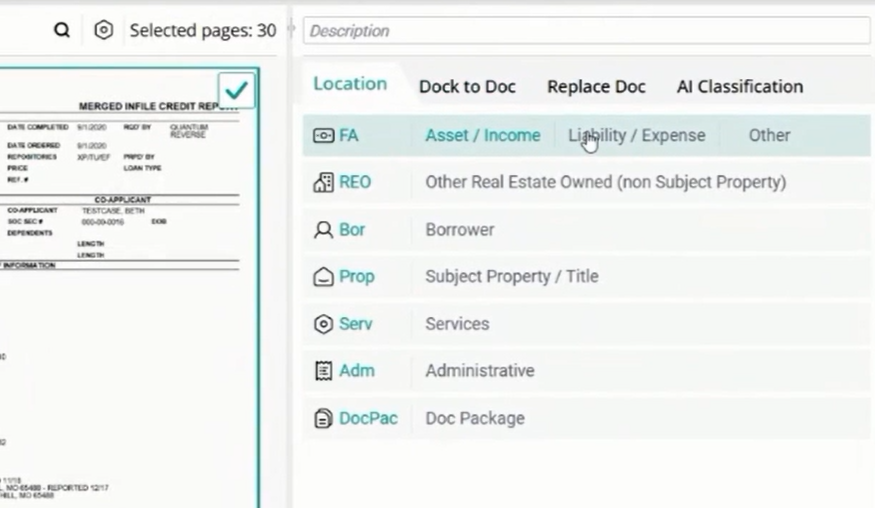
Details Section
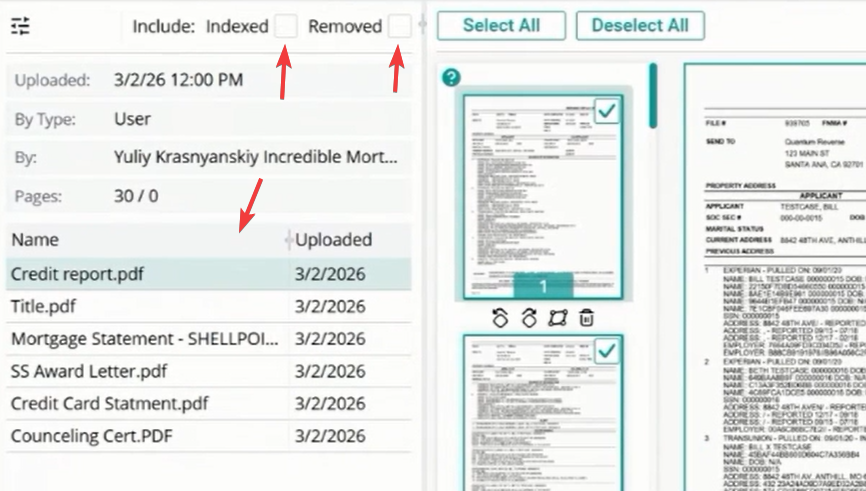
The Details section provides metadata about the currently selected document. You can toggle the visibility of various fields: Uploaded Date: Shows when the document was uploaded. You can choose to display just the date or both date & time (e.g., 3/2/2026, 12:02 PM). By Type: Indicates the source of the upload (e.g., "User"). By User: Displays the specific individual and company responsible for the upload (e.g., "Yully Krasnyansky - Incredible Mortgage Inc."). Pages: Shows the total page count (e.g., 30 / 0). Attached To: Indicates the specific file or entity the document is associated with.
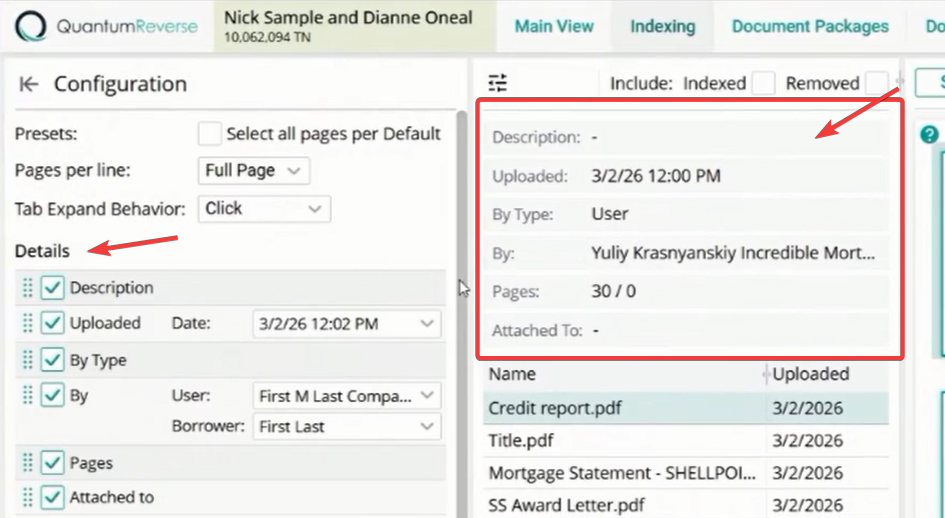
Table Selection
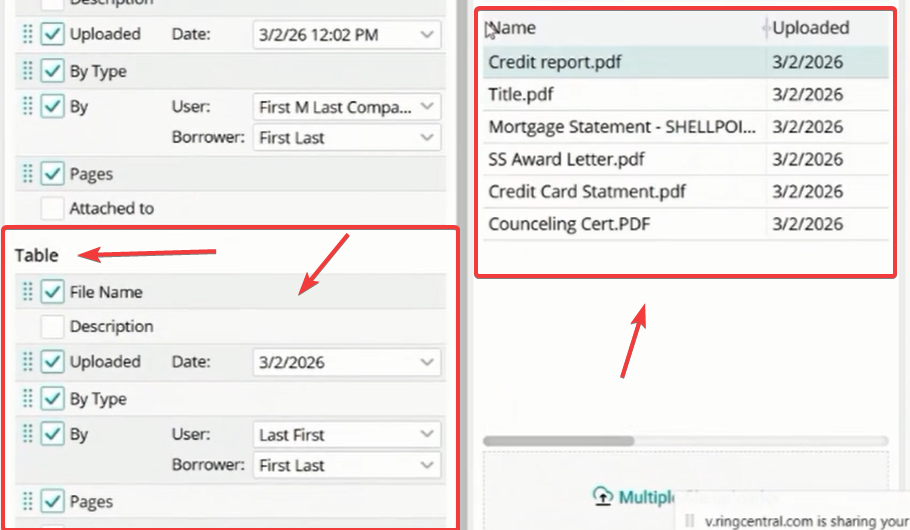
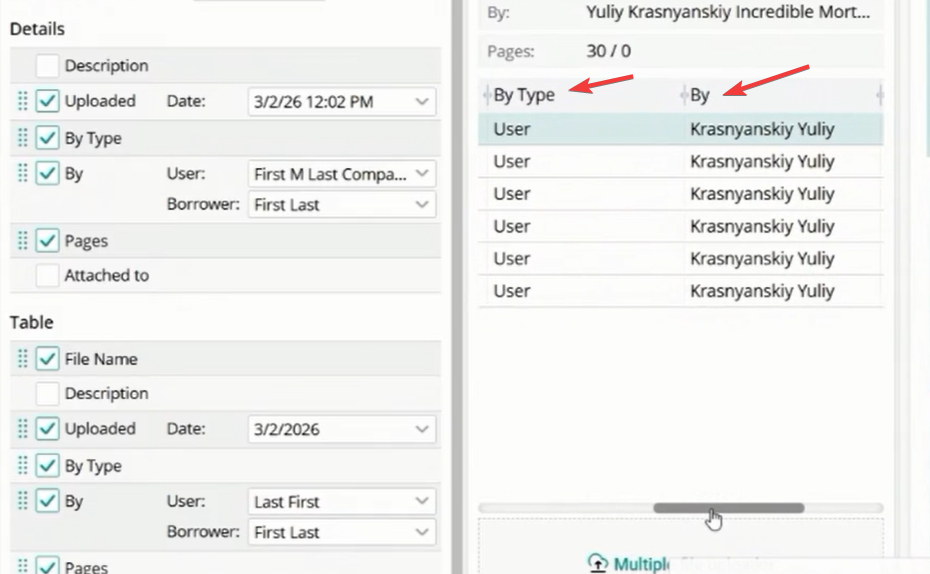
The Table section allows you to customize the columns displayed in the document list view. This is useful for managing large batches of documents: File Name: The primary identifier for the document (e.g., "Credit report.pdf"). Description: Any additional notes or labels. Uploaded Date: When the file entered the system. By Type/User: Attribution data for the upload. Pages: Quick view of document length.
Indexing Status Filters
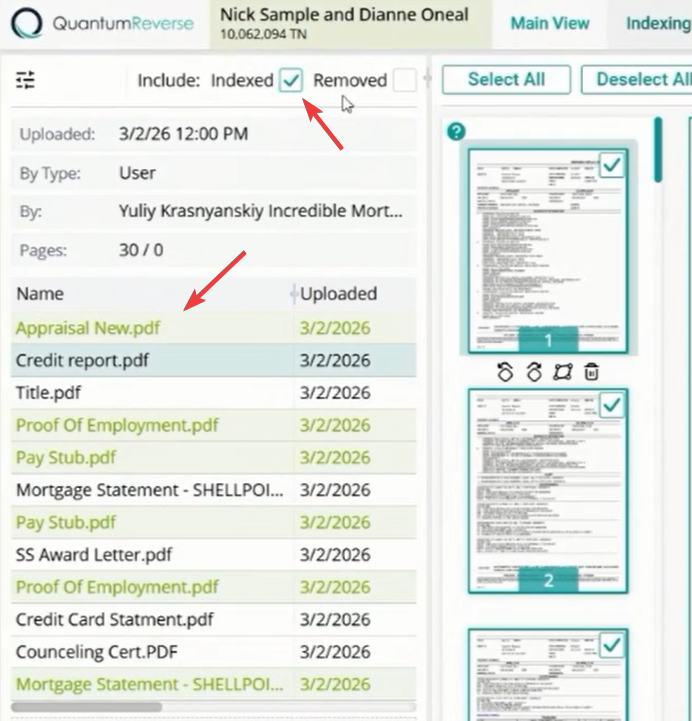
At the top of the document list, you can filter documents based on their indexing status to keep your workspace organized: Include Indexed: When enabled, documents that have already been indexed will remain in the list, highlighted with a green background for easy identification. Include Removed: Shows documents that have been explicitly removed from the active indexing queue.