
Click on the Open document button
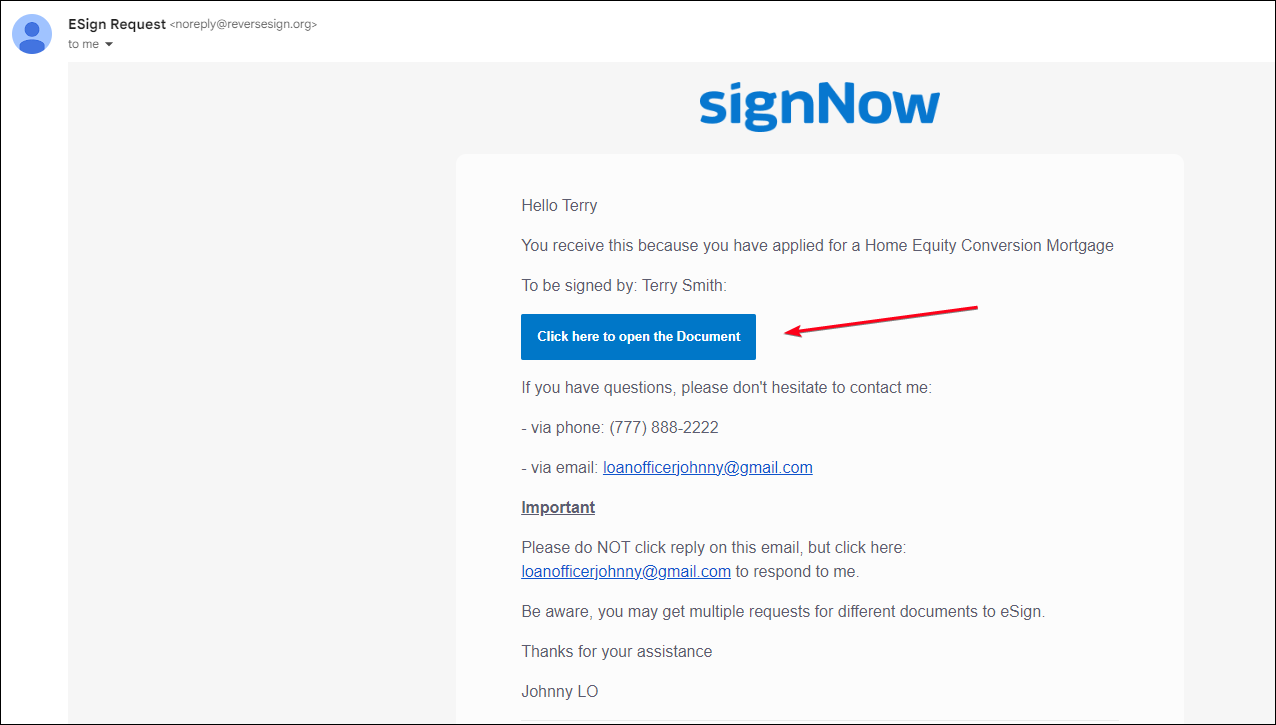
The pop-up screen asking the user if they received a pin from the loan officer will show up.
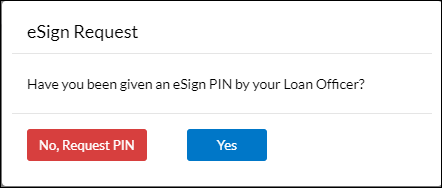
If the LO has not provided the borrower with a PIN number, the borrower should select the option No, Request Pin to access the options to obtain a PIN.
Note: The best practice is to provide the PIN by phone.
Please refer to the KB article on how to request a pin.
https://qr.freshdesk.com/a/solutions/articles/43000725713
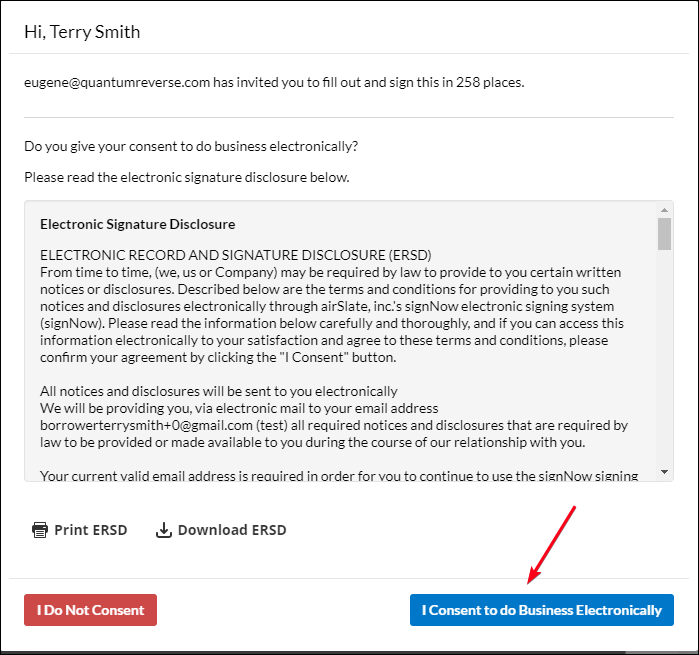
Once the PIN has been verified, the Borrower must consent to Esign
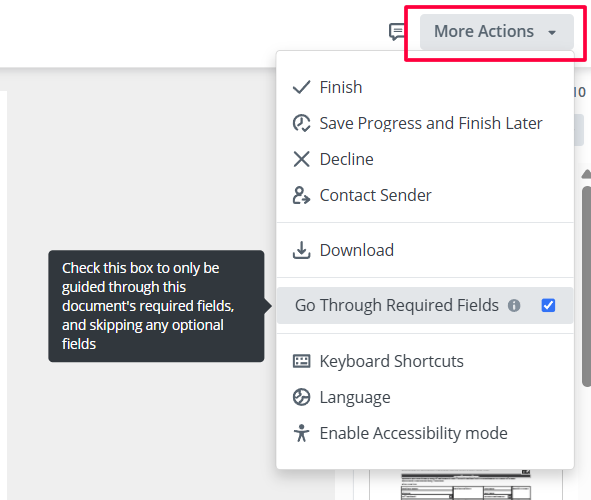
On the right, the "More Options" feature is located.
Its allows signers to adjust/control their esigning process. For example, they can save their process, download a copy of the package, decide if they want to be led through required fields only or through the optional fields as well, and some other options.
The document package will open with a start button to begin the signing process.
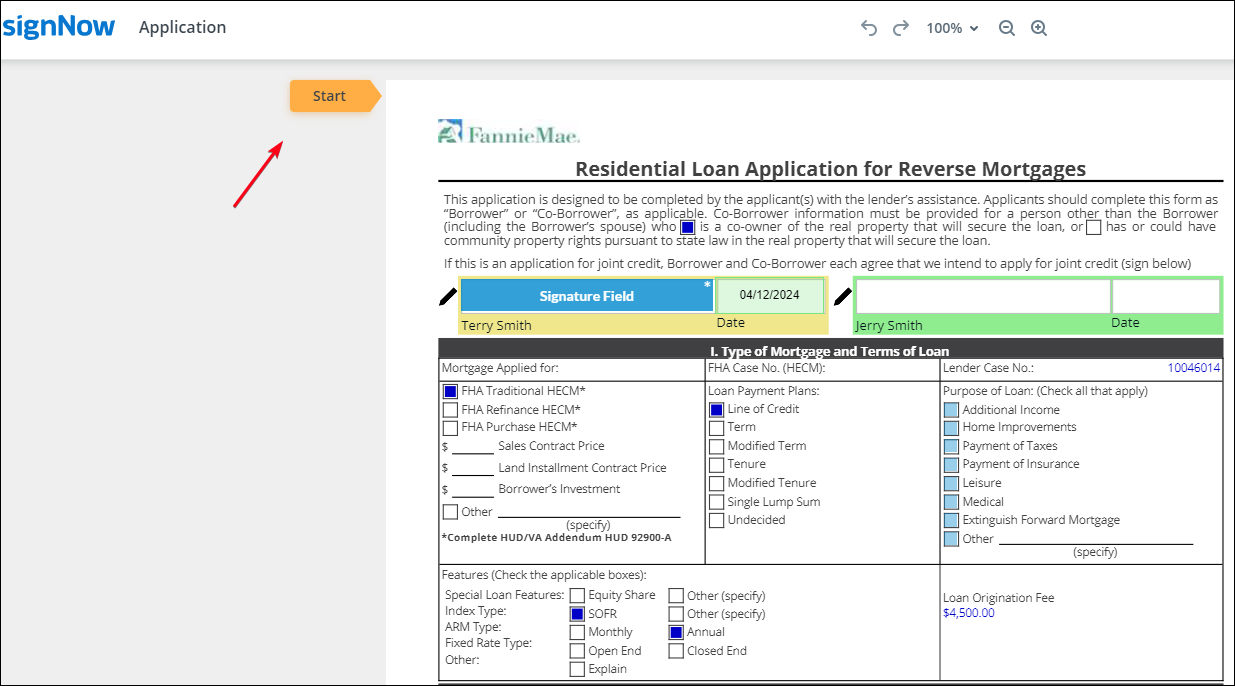
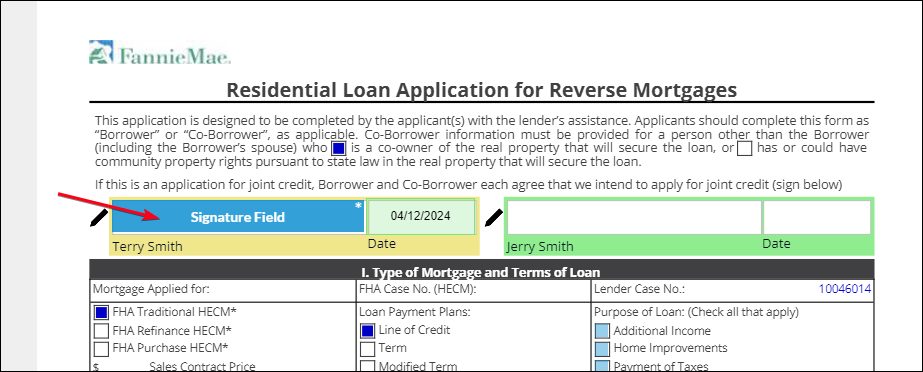
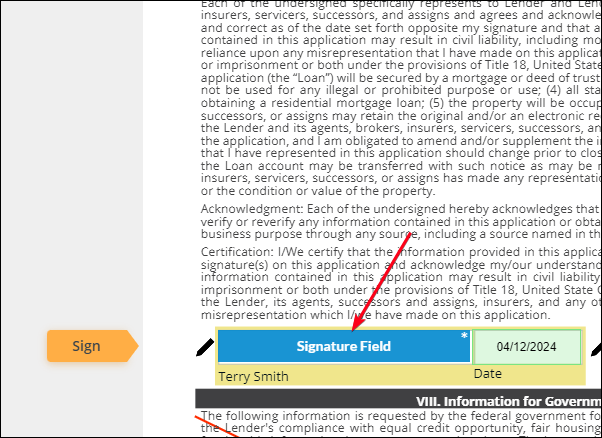
Once the start button is hit, it will take the borrower to the field that requires their signature.
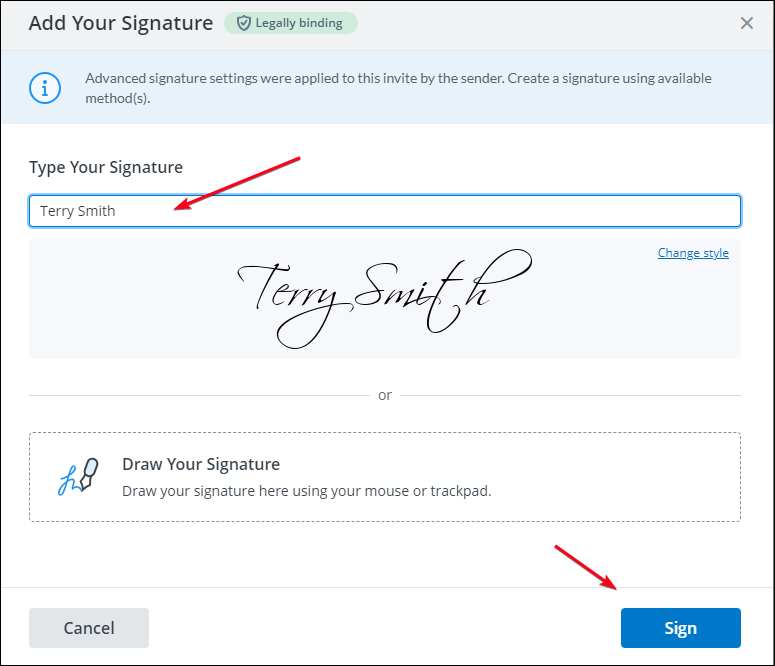
A box will display to allow the user an option to enter the spelling of the signature and font. Once the Sign button is selected on the lower left, this signature will be used throughout the process.
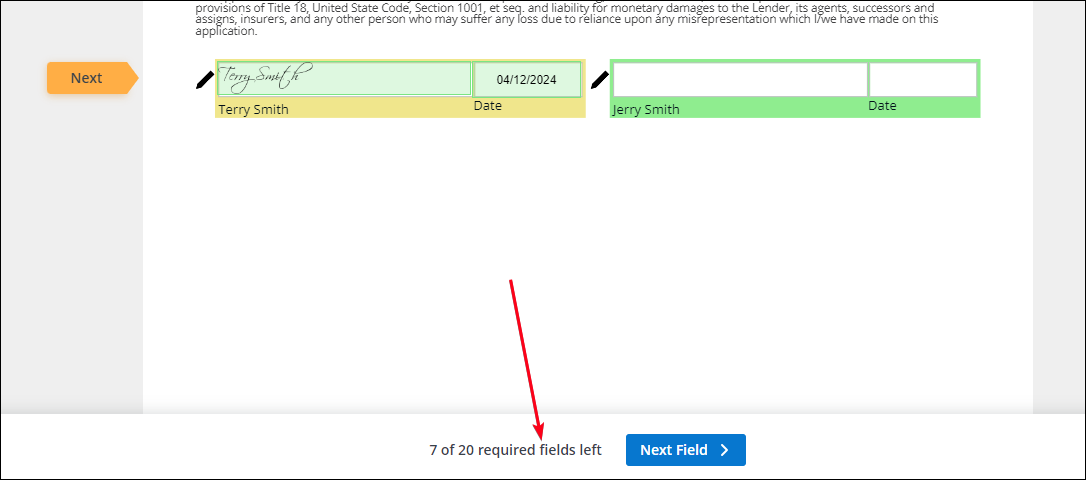
Click next to continue to the next required field.
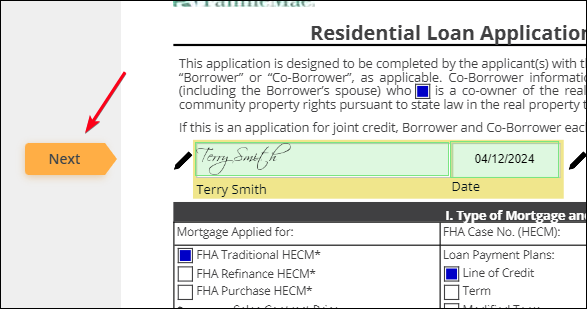
Click Sign to populate the signature in each required field
The button on the page will indicate how many required fields remain to complete the process.
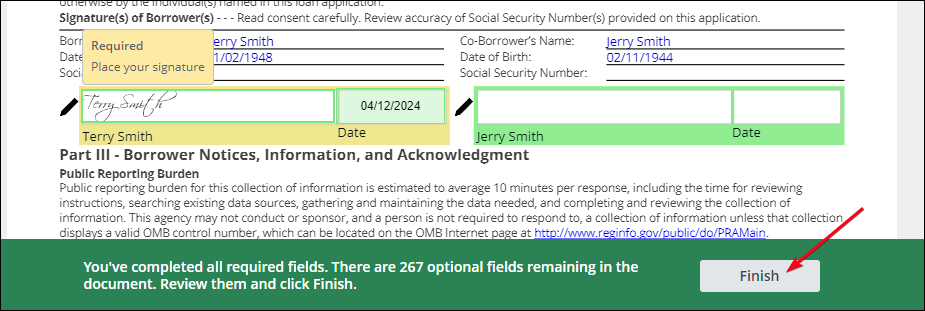
Once completed, the Finish button will become available. The borrower must hit this button to complete the process.
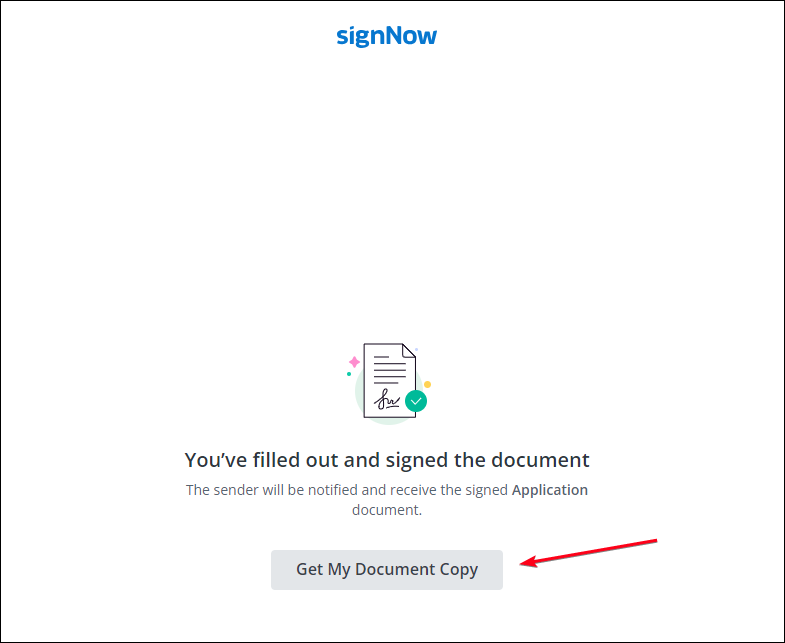
The confirmation will display and allow the borrower access to the executed package.
Video